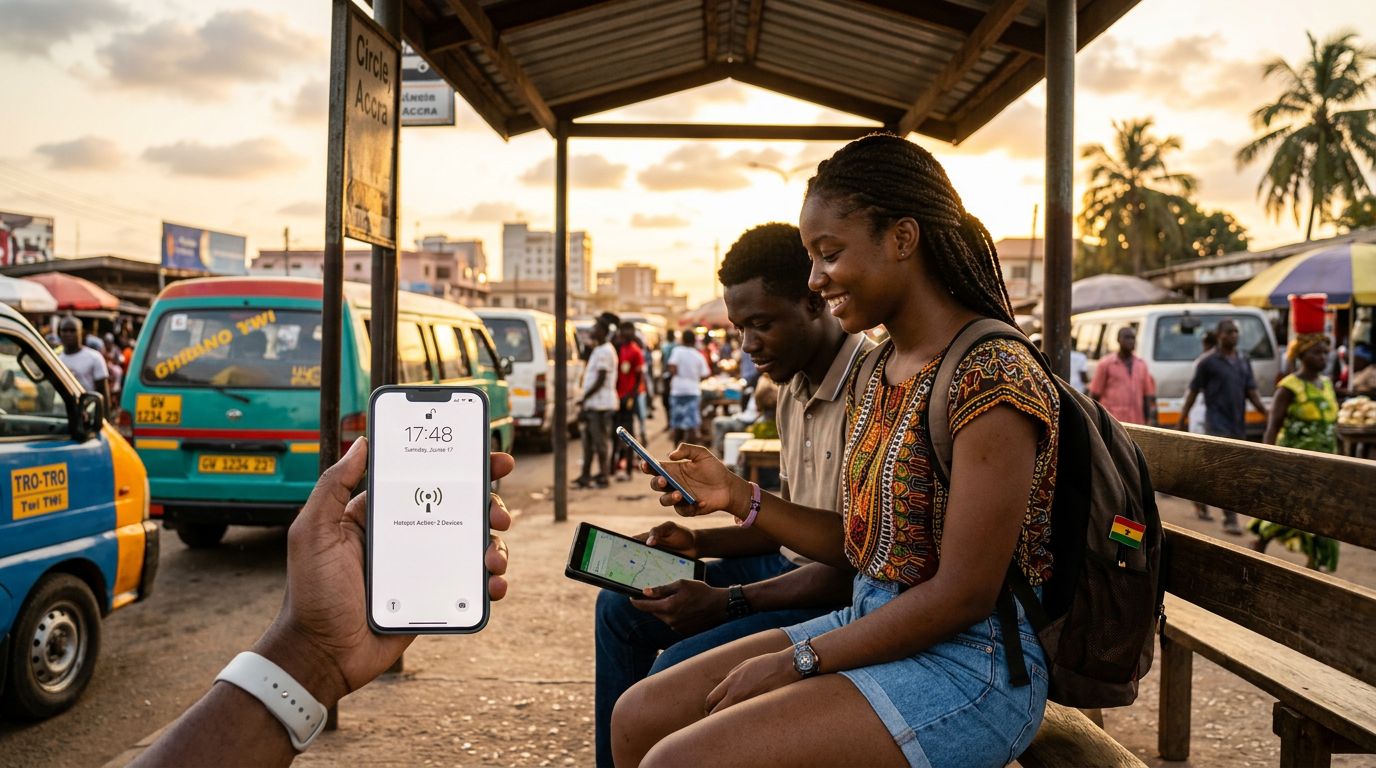
Understanding Connectivity Requirements for Your Ghana Trip
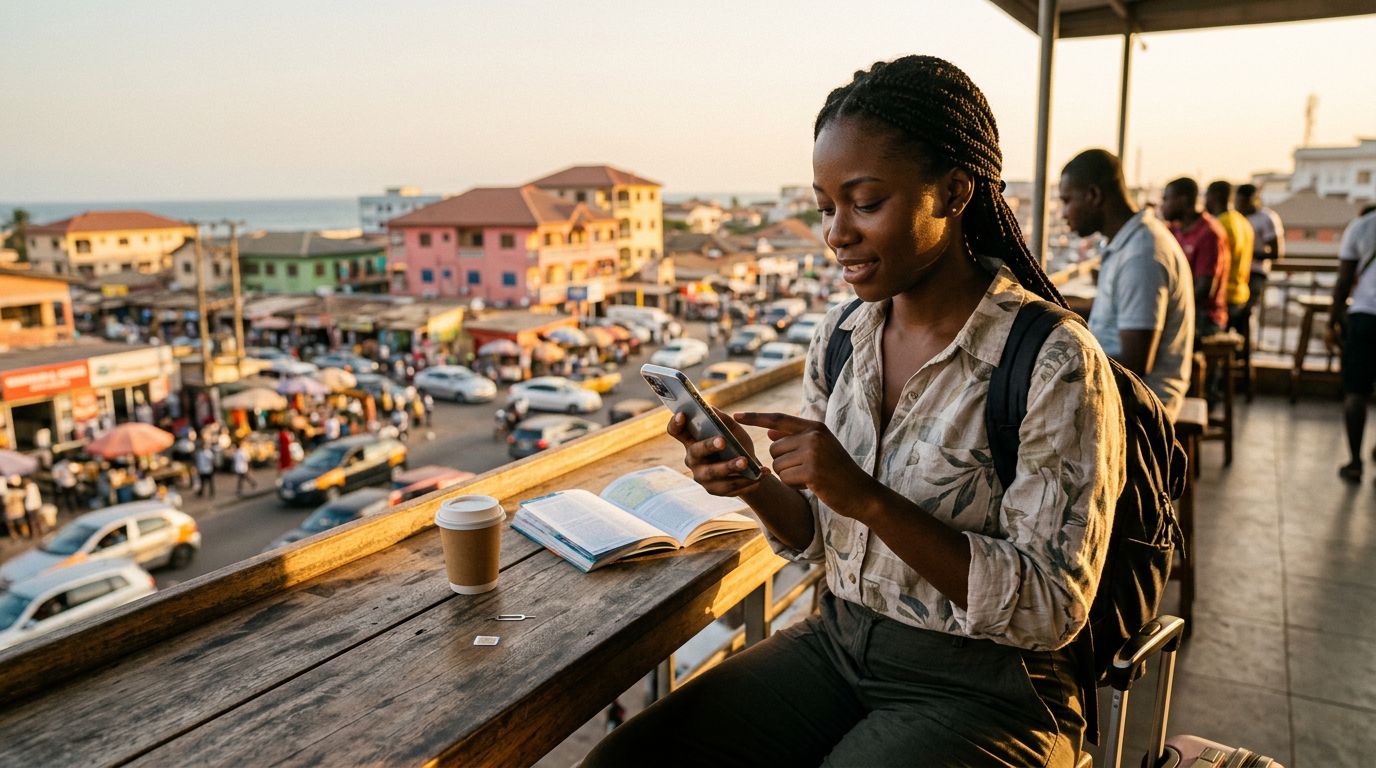
Traveling to Ghana offers an incredible experience, from the bustling markets of Accra to the historical significance of the Cape Coast castles. Whether you are visiting for business or leisure, staying connected is essential for maps, translation apps, and sharing your journey. Many travelers rely on their smartphones as their primary internet source, but sharing that connection with a laptop or a travel companion is often necessary. This is where understanding how to use hotspot in Ghana becomes vital.
A mobile hotspot allows your smartphone to act as a portable Wi-Fi router. By broadcasting a signal, your phone enables other devices—such as tablets, laptops, or a friend’s phone—to access the internet using your mobile data plan. In a country like Ghana, where public Wi-Fi can be unreliable or insecure, having a personal hotspot is a reliable way to ensure you can work remotely or stay in touch with family.
To make this work, you need a stable data connection. Traditional roaming with your home carrier can be prohibitively expensive and often comes with restrictive data caps. This is why many savvy travelers choose an eSIM solution. OneTapSIM provides a seamless way to get online the moment you land. By installing a digital SIM card, you avoid the hassle of searching for physical SIM cards at the airport or dealing with local registration requirements. Once your eSIM is active, you can enable your hotspot settings just as you would with a standard SIM card.
Configuring Your Device for Hotspot Sharing
Before you attempt to connect your other devices, you must ensure your smartphone is correctly configured. The process varies slightly depending on whether you are using an iPhone or an Android device.
For iPhone users, navigate to the Settings app and look for the Personal Hotspot menu. Here, you can toggle the "Allow Others to Join" switch. It is highly recommended that you set a strong, unique password for your hotspot to prevent unauthorized users from consuming your data. You may also see an option for "Maximize Compatibility," which switches the frequency to 2.4GHz. While this is slightly slower than the 5GHz band, it is often necessary if you are connecting older laptops or devices that do not support modern Wi-Fi standards.
If you are using an Android device, the process is generally found under Network & Internet or Connections, specifically under the Hotspot & Tethering section. You can name your network and set your security protocol to WPA2 or WPA3. Always ensure your security is enabled; an open hotspot allows anyone nearby to connect to your network, which can lead to rapid data depletion and potential security risks.
When using a OneTapSIM eSIM in Ghana, your phone treats the eSIM data plan as the primary source of internet. As long as your data roaming is enabled for that specific eSIM profile, your hotspot will pull from that data bucket. If you find that your hotspot is not working, double-check that your APN (Access Point Name) settings match the requirements provided by your eSIM provider. In most cases, these settings configure automatically upon installation, but a quick restart of your phone can often resolve connectivity hiccups.
Best Practices for Managing Data While Tethering
Using a hotspot in Ghana can be convenient, but it can also consume data much faster than browsing on a phone screen. When you connect a laptop to your phone’s hotspot, the computer often assumes it is on a high-speed, unlimited home network. Consequently, it may begin background tasks like operating system updates, cloud storage syncing, or high-definition video streaming. These activities can exhaust your data balance in minutes.
To manage your data effectively, consider these strategies:
First, enable "Metered Connection" settings on your laptop. If you are using Windows, you can go into your Wi-Fi settings and toggle the "Set as metered connection" option for your hotspot network. This prevents Windows from downloading large updates automatically. On macOS, you can use third-party firewall software or simply monitor your activity monitor to see which applications are using the most bandwidth.
Second, be mindful of video streaming. Platforms like YouTube, Netflix, or video conferencing tools like Zoom consume significant amounts of data. If you must participate in a video call, try to turn off your camera or lower the resolution settings to save data. If you are just checking emails or browsing text-based websites, your data will last significantly longer.
Third, monitor your usage through your phone’s built-in data tracking tools. Both iOS and Android provide detailed breakdowns of how much data each application has used. By keeping an eye on these statistics, you can identify if a specific app is running in the background and draining your connection.
Finally, remember that your OneTapSIM eSIM is designed to provide reliable coverage across Ghana. However, network speeds can fluctuate depending on your location. In major cities like Accra or Kumasi, you will likely experience high-speed 4G or 5G connectivity. In more remote, rural areas, speeds might drop to 3G. If you are planning to use your hotspot for professional work, it is wise to test your connection speed in a new location before committing to a long video call.
By preparing your devices before you leave and understanding how to manage your data consumption, you can enjoy a stress-free trip. Whether you are uploading photos of your trip to social media, navigating through the vibrant streets of Accra, or finishing a project from a quiet cafe, having a reliable hotspot setup ensures you stay connected on your own terms. With the flexibility of an eSIM, you can focus on the experience of traveling through Ghana rather than worrying about the logistics of your internet connection.