Understanding Mobile Connectivity in Taiwan
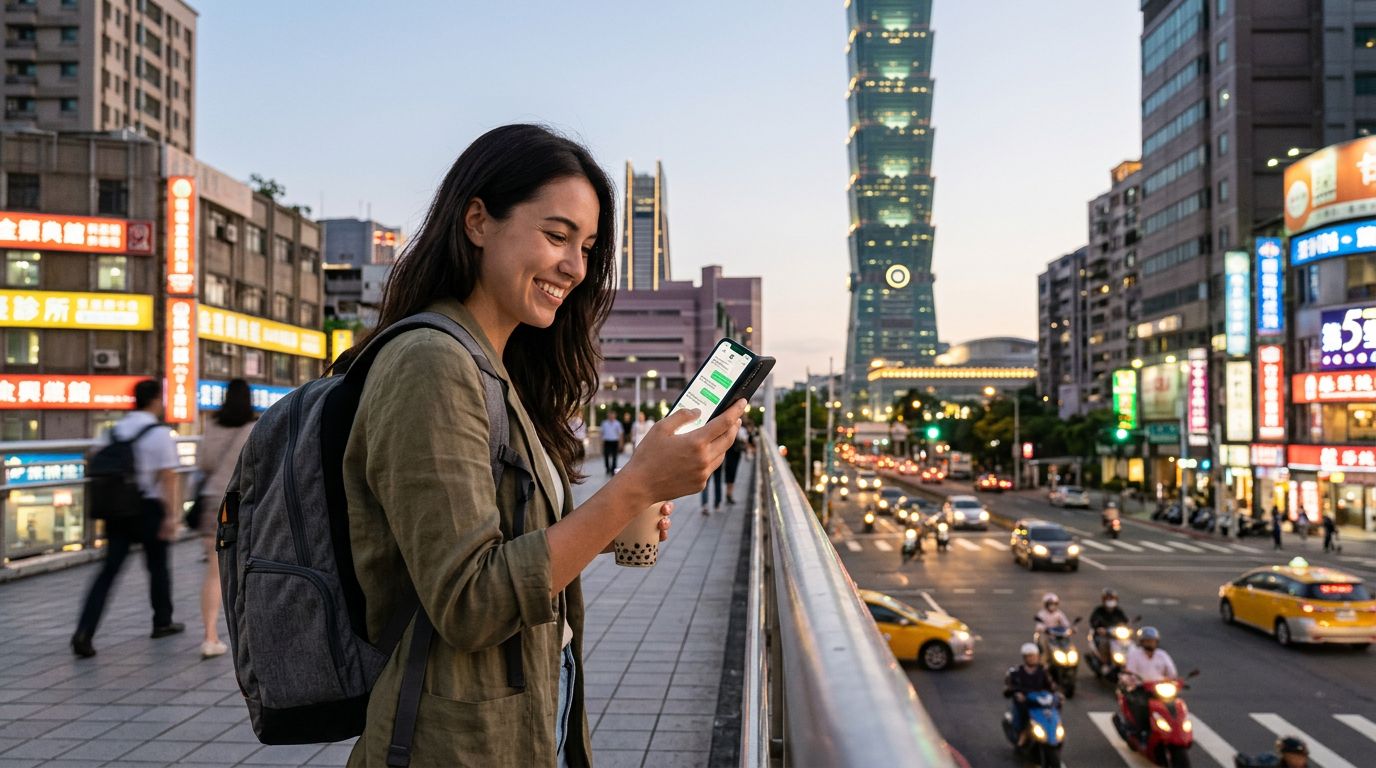
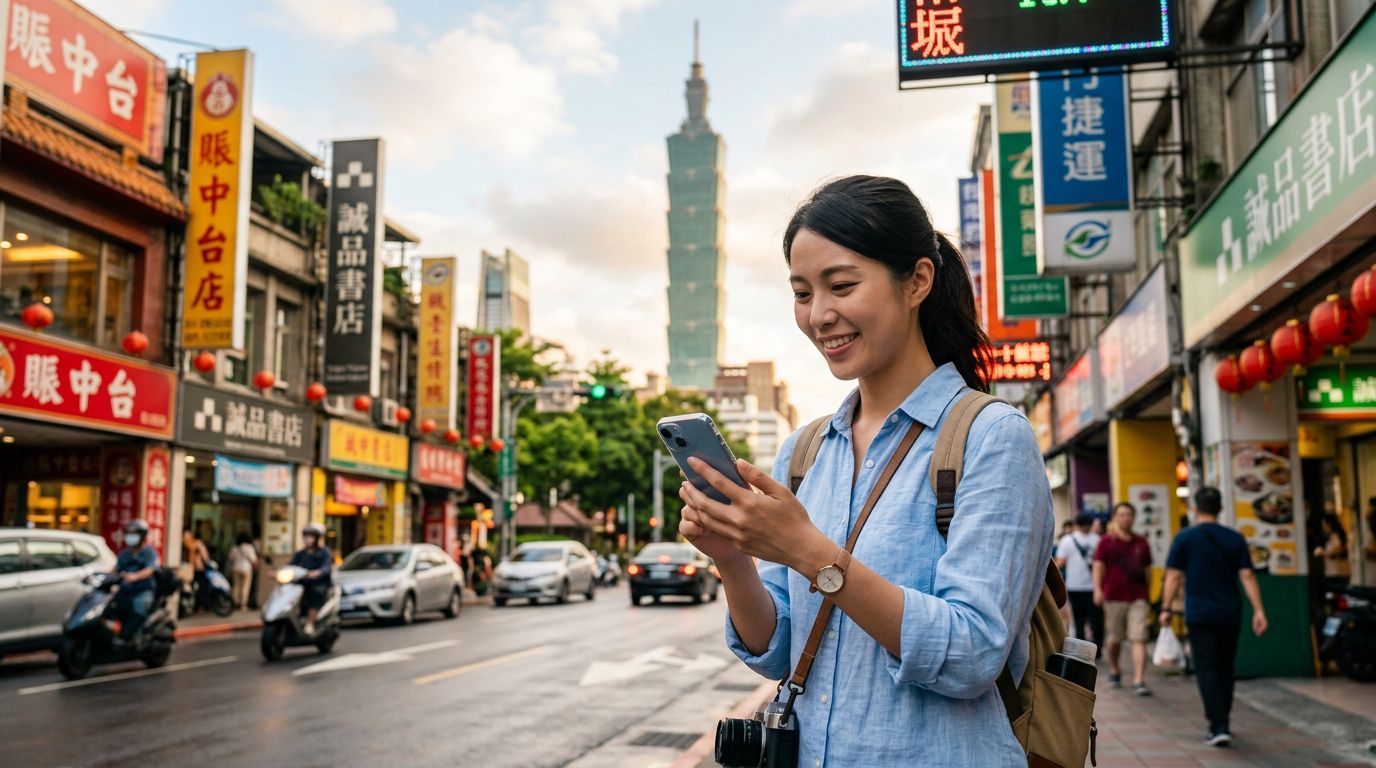
Taiwan is a destination that seamlessly blends high-tech urban centers with breathtaking natural landscapes. Whether you are navigating the bustling night markets of Taipei, hiking the trails of Taroko Gorge, or working remotely from a quiet café in Tainan, staying connected is essential. For many travelers, a single mobile connection is not enough. You may be traveling with a companion who needs internet access, or you might need to connect your laptop to your phone to finish a work project while on the move. This is where knowing how to use hotspot in Taiwan becomes a vital skill.
A mobile hotspot, or tethering, allows you to share your cellular data connection with other devices, such as tablets, laptops, or a friend’s smartphone. When you rely on a travel eSIM, such as those provided by OneTapSIM, you are essentially turning your phone into a portable Wi-Fi router. This setup provides a secure and private connection, which is significantly safer than logging into public Wi-Fi networks found in airports, train stations, or coffee shops. Public networks are often unencrypted and can leave your personal data vulnerable to security threats. By using your own data through a hotspot, you maintain control over your digital environment.
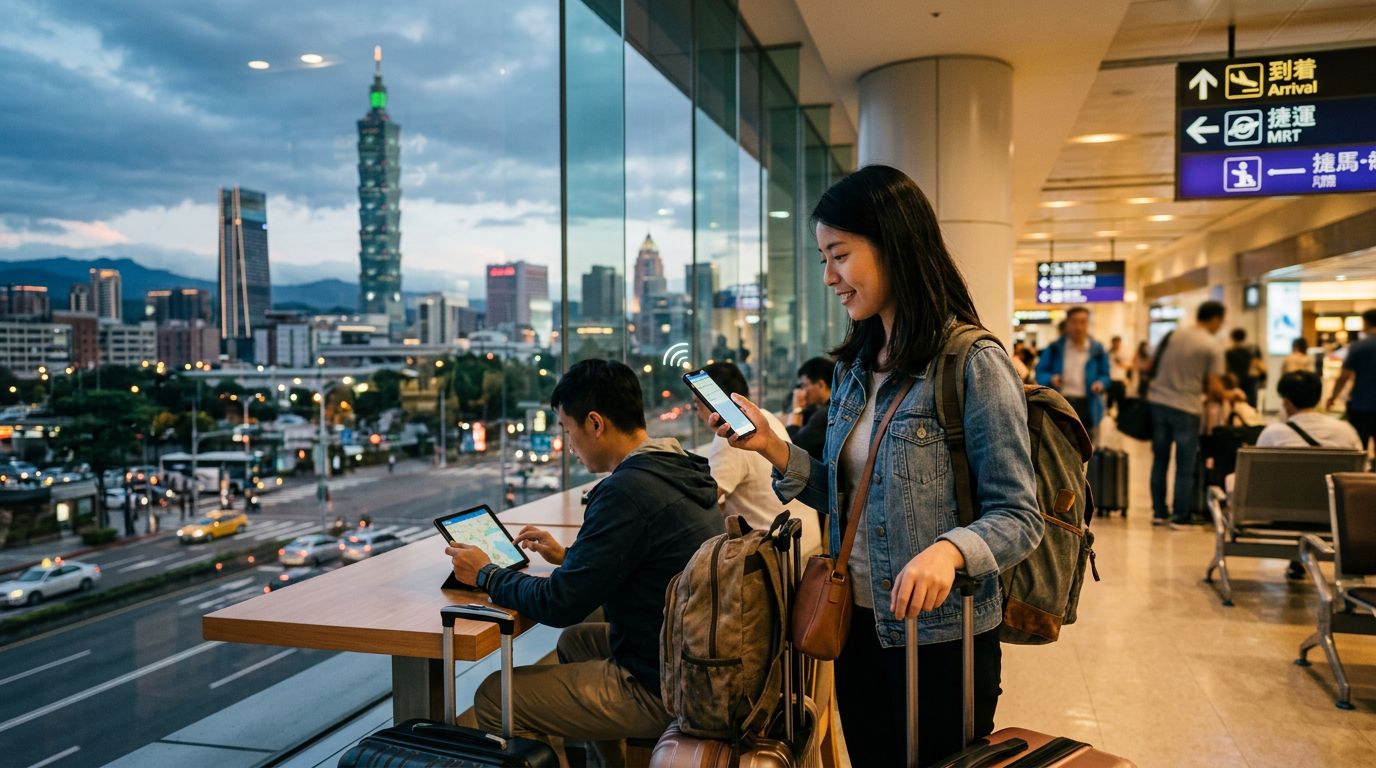
Before you arrive in Taiwan, it is important to confirm that your device supports hotspot functionality and that your chosen data plan allows for tethering. Most modern eSIM providers permit this, but it is always best to verify your settings to ensure a smooth experience once you land at Taoyuan International Airport or Kaohsiung International Airport.
Configuring Your Device for Hotspot Sharing
Setting up a hotspot is generally straightforward, but the steps vary slightly depending on whether you are using an iPhone or an Android device. Before you attempt to connect, ensure that your eSIM is active and that your cellular data is toggled on.
For iPhone users, navigate to the Settings app. Look for the Personal Hotspot menu. If you do not see it immediately, check under Cellular or Mobile Data. Within the Personal Hotspot settings, you will find a toggle for "Allow Others to Join." Once you switch this on, your phone will broadcast a network name, usually your device’s name, and a Wi-Fi password. It is highly recommended to change the default password to something secure to prevent unauthorized users from consuming your data. Keep the Personal Hotspot screen open while your other devices attempt to connect for the first time; this helps the devices find the signal more quickly.
For Android users, the process is equally intuitive. Go to your Settings menu and look for "Network & Internet" or "Connections." From there, select "Hotspot & Tethering." Tap on "Wi-Fi Hotspot" to configure your settings. You can set the network name (SSID), choose a security protocol—WPA3 is the most secure option if your devices support it—and set a strong password. Once configured, toggle the hotspot switch to the "On" position.
When using a OneTapSIM eSIM, the data connection is treated as your primary cellular line. Because the eSIM acts as a local carrier, your phone treats the data as if it were a standard SIM card, meaning your hotspot functionality will work exactly as it does at home. If you encounter issues, ensure that your APN (Access Point Name) settings are configured correctly according to the instructions provided with your eSIM. Most modern devices will auto-populate these settings, but a quick restart of your phone often resolves any initial connectivity hiccups.
Best Practices for Data Management and Battery Life
Sharing your data connection can be resource-intensive. Hotspot usage drains your phone’s battery significantly faster than standard use because the device is managing both the cellular radio and the Wi-Fi radio simultaneously. To ensure you stay connected throughout your day of exploring Taiwan, consider a few optimization strategies.
First, monitor your data consumption. Certain activities, such as streaming high-definition video, downloading large files, or performing software updates, will deplete your data allowance quickly. If you need to use your hotspot for work, try to limit background processes on your connected laptop. Disable cloud synchronization services like Dropbox, Google Drive, or iCloud while you are tethered, as these services often trigger large background uploads and downloads that you might not notice until your data limit is reached.
Second, manage your power consumption. If you plan on using your hotspot for an extended period, carry a portable power bank. Keeping your phone plugged in while tethering prevents the battery from dying unexpectedly, which is especially important if you are relying on your phone for navigation or translation apps. Additionally, consider lowering the screen brightness of your phone and closing unnecessary background applications to reduce the heat generated by the processor.
Third, be mindful of your network environment. In rural or mountainous areas of Taiwan, cellular signals can be weaker than in the city. If your hotspot connection feels slow, try moving your phone closer to a window or to a higher elevation if you are outdoors. If you are in a crowded area, such as a major night market, interference from other Wi-Fi signals might degrade your hotspot’s performance. In such cases, switching your hotspot frequency from 2.4GHz to 5GHz—if your phone supports it—can provide a more stable and faster connection, as the 5GHz band is generally less congested.
By following these guidelines, you can effectively manage your connectivity while traveling. Whether you are sharing photos of your trip to Taipei 101 or checking emails from a quiet tea house in Jiufen, using your OneTapSIM data as a hotspot provides the flexibility and security you need to make the most of your time in Taiwan. Proper preparation ensures that your digital tools remain a convenience rather than a source of stress, allowing you to focus on the sights, sounds, and flavors of this island nation.