Understanding Mobile Hotspot Functionality with Travel eSIMs
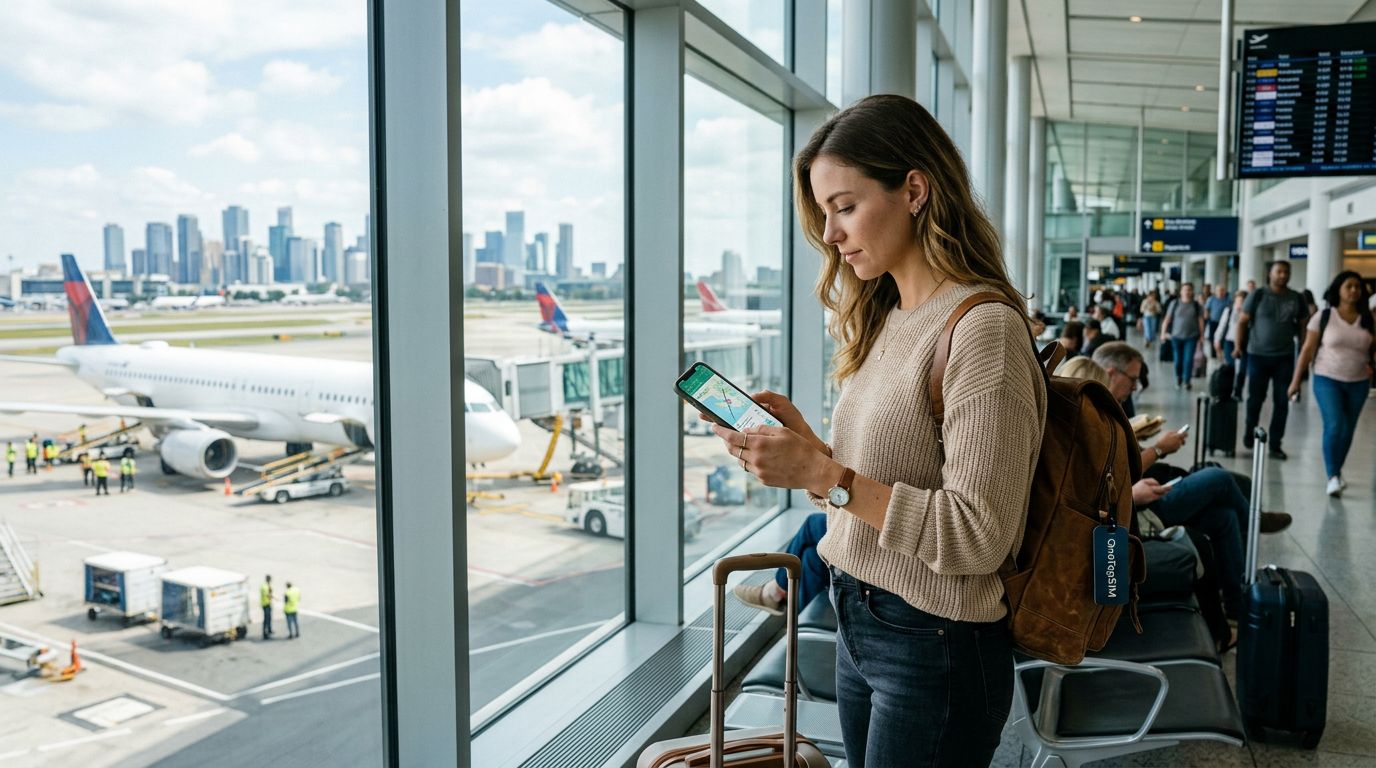
When you travel abroad, staying connected is often a top priority. Whether you need to check maps, translate signs, or keep up with important emails, having a reliable internet connection is essential. OneTapSIM offers a convenient way to stay online without the hassle of physical SIM cards. One common question travelers have is whether they can share their data connection with other devices, such as laptops or tablets, by using their phone as a mobile hotspot.
The short answer is yes. Most modern smartphones allow you to use your mobile data connection to create a Wi-Fi network that other devices can join. When you install a OneTapSIM profile on your device, it functions just like a local SIM card. Your phone treats the data provided by the eSIM as its primary source of internet, meaning the hotspot feature will generally work exactly as it would with your domestic carrier.
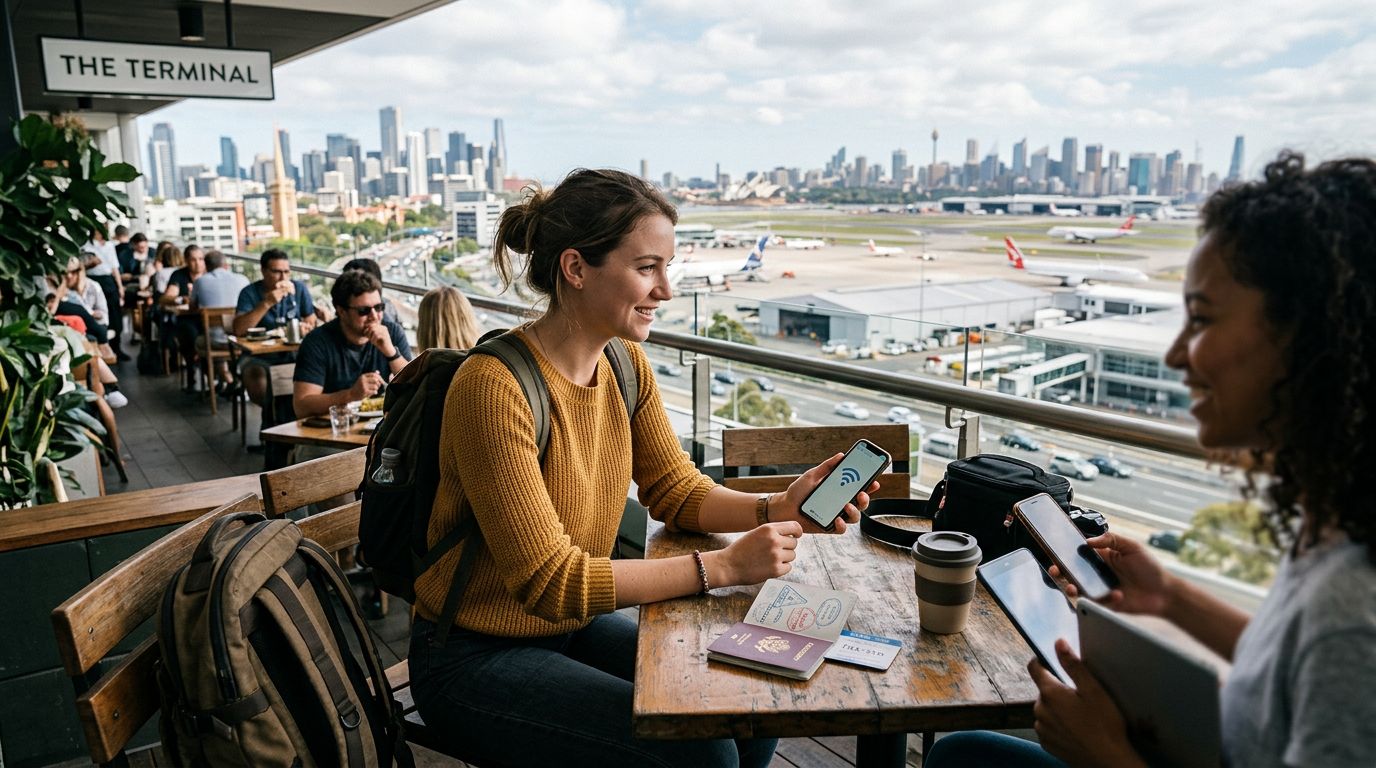
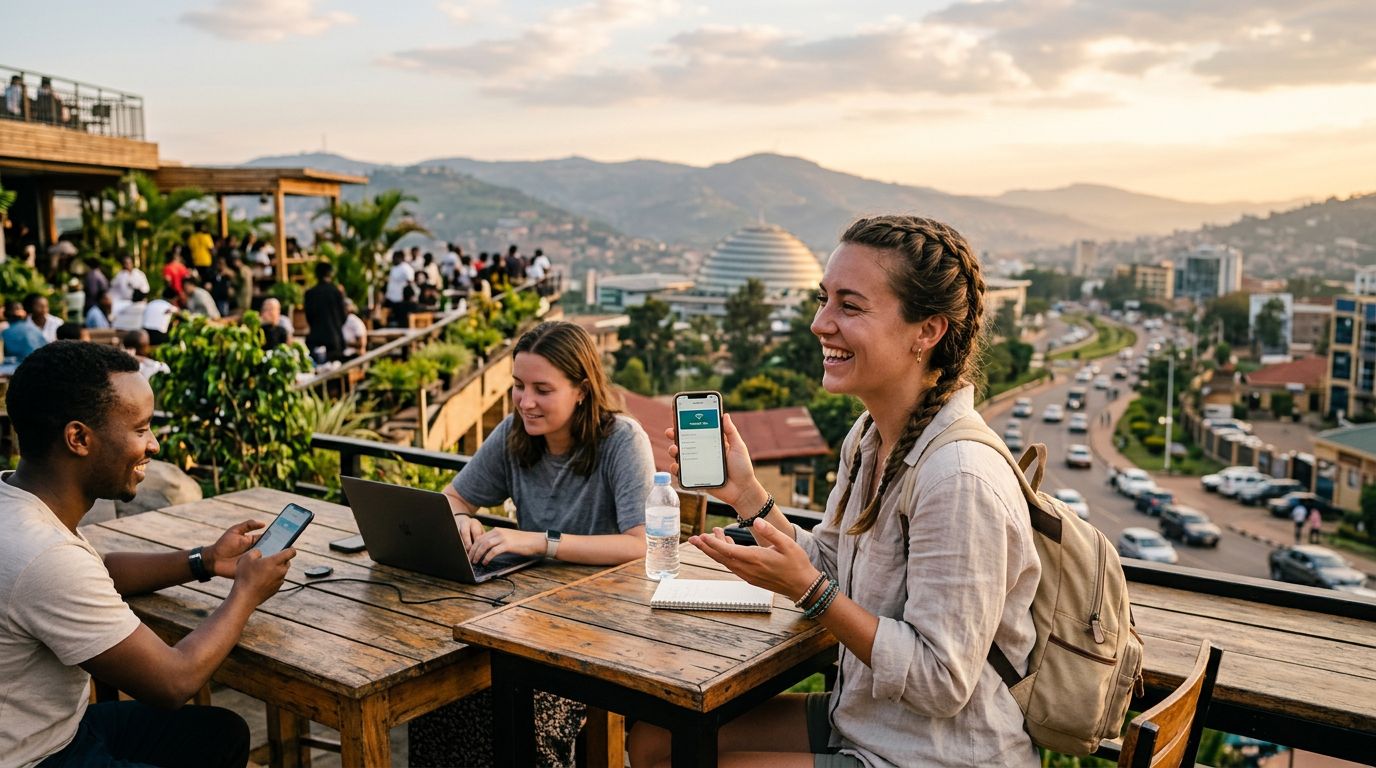
However, there are a few technical nuances to keep in mind. Your phone’s ability to share data depends more on your device’s settings and the local network conditions than on the eSIM itself. If your phone supports hotspot tethering, it should be able to broadcast the data from your OneTapSIM to your secondary devices. This is particularly useful for digital nomads or travelers who need to work from a laptop while on the go, as it removes the need to find public Wi-Fi networks, which can often be slow, unreliable, or insecure.
Optimizing Your Device for Data Sharing
Before you start tethering, it is important to configure your device correctly to ensure a smooth experience. The first step is to verify that your OneTapSIM is set as the active line for cellular data. You can check this in your phone’s cellular or mobile data settings. If your phone is still trying to use your home carrier’s roaming data, your hotspot might be disabled or incur unexpected charges from your home provider.
Once you have confirmed that your device is using the OneTapSIM for data, you need to enable the Personal Hotspot or Internet Sharing feature. On most smartphones, this is found within the main settings menu. When you turn on this feature, your phone will generate a network name and a password. You can then connect your laptop or tablet to this network as if it were a standard home Wi-Fi router.
One common issue that travelers face when using mobile hotspot with travel esim abroad is data consumption. Laptops and tablets are designed to use more data than mobile devices. For example, a laptop might automatically download large system updates, sync cloud storage files, or stream high-definition video in the background. Because these devices assume they are connected to an unlimited home Wi-Fi network, they do not always restrict their data usage. To manage this, you can set your connection as a "metered connection" in your laptop’s network settings. This tells your computer to pause background updates and reduce data-heavy activity, helping you make the most of your travel data plan.
Troubleshooting Common Hotspot Issues
While using a mobile hotspot with your OneTapSIM is usually straightforward, you may occasionally run into connectivity issues. If your secondary device fails to connect, the first step is to check if your mobile data is active on your phone. Sometimes, the connection to the local tower might drop briefly, or the APN (Access Point Name) settings might need a manual refresh. OneTapSIM provides clear instructions on how to ensure your APN settings are correct, as these are vital for establishing a stable data link.
Another frequent cause of connection failure is the frequency band of the hotspot. Some older devices struggle to connect to 5GHz Wi-Fi networks. If you are having trouble, try navigating to your hotspot settings and switching the compatibility mode to 2.4GHz. This frequency is more widely supported by older laptops and tablets. Additionally, ensure that your phone is not in a power-saving mode. Many smartphones automatically disable or throttle hotspot functionality when the battery is low to preserve energy. Keeping your phone plugged into a portable power bank while tethering can prevent these automatic power-saving measures from interrupting your internet access.
If you find that your connection is slow, consider your physical surroundings. Large buildings, thick walls, or being in a remote area can impact the signal strength of the local cellular towers. Moving closer to a window or an open area can often improve your reception significantly. Remember that tethering relies on the cellular signal strength at your specific location; if your phone shows only one or two bars of service, the speed of your hotspot will be limited by that local coverage. By keeping these factors in mind, you can effectively use your OneTapSIM to keep all your devices connected, ensuring you stay productive and informed throughout your journey.
Need data for your trip?
Browse eSIM plans for 190+ destinations, with instant QR delivery.
Browse destinations