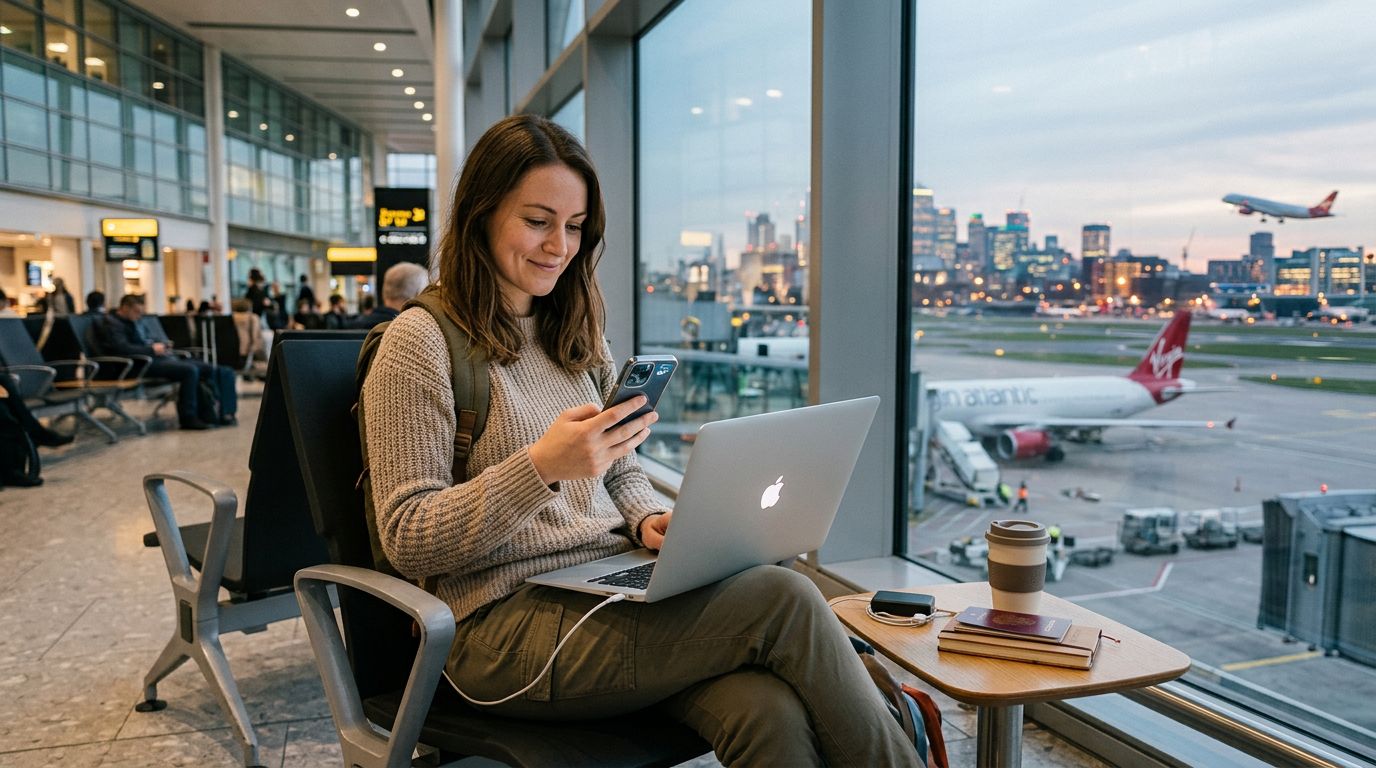
Understanding How Hotspot Functionality Works with Travel eSIMs
When you travel internationally, staying connected is a top priority. Whether you are checking maps, searching for local restaurant reviews, or managing work emails, having reliable internet is essential. Many travelers choose a travel eSIM because it eliminates the need to swap physical SIM cards or pay expensive roaming fees. However, a common question arises: can you share your data connection with other devices?
The short answer is yes. Using your travel eSIM as a mobile hotspot—often called tethering—is generally supported, provided your device is configured correctly and your data plan allows it. When you activate a OneTapSIM eSIM, it functions just like a local SIM card within your phone’s internal hardware. Because the phone treats the eSIM as a primary or secondary data source, the hotspot feature behaves exactly as it would if you were using a local physical SIM.
The ability to create a hotspot is particularly useful if you are traveling with a laptop, a tablet, or a companion who needs a quick connection. Instead of hunting for public Wi-Fi networks, which can be insecure and slow, you can create a private, password-protected network using your phone’s data. Before you start, ensure that your device has the eSIM enabled as the primary source for cellular data in your settings. If you have both a physical SIM and an eSIM installed, your phone needs to know which one to use for the hotspot broadcast.
Steps to Configure Your Hotspot on iOS and Android
Configuring your hotspot is straightforward, but the steps vary slightly depending on whether you are using an iPhone or an Android device.
For iPhone users, start by ensuring your eSIM is active. Go to Settings, then Cellular (or Mobile Data). Under the "Cellular Data" section, select your travel eSIM. Once that is confirmed, go back to the main Settings menu and look for "Personal Hotspot." Toggle the "Allow Others to Join" switch to the on position. You will see a Wi-Fi password listed below; you can change this to something more memorable if you wish. To ensure the connection is stable, keep the "Maximize Compatibility" setting turned on if you are connecting older devices, though note that this may reduce the speed of the connection.
If you are using an Android device, the process is quite similar. Navigate to your Settings menu and look for "Network & Internet" or "Connections." Select "Hotspot & Tethering" and then tap on "Wi-Fi Hotspot." From here, you can toggle the switch to turn the hotspot on. You should also check the "Hotspot password" and "Hotspot name" settings to ensure your network is secure. It is vital to verify that your "Mobile Data" setting is pointed toward the eSIM profile you installed via OneTapSIM. If your phone is still trying to route data through your home carrier’s physical SIM, the hotspot might fail to connect or trigger unintended roaming charges from your home provider.
One important tip for both operating systems: always keep your hotspot password-protected. Leaving a hotspot open allows anyone in your immediate vicinity to connect to your data, which can lead to your data allowance being depleted much faster than expected.
Troubleshooting and Optimizing Your Hotspot Experience
Even when everything is configured correctly, you might occasionally run into issues. If your hotspot isn't working, the first step is to check your APN (Access Point Name) settings. While most modern smartphones automatically detect the correct settings for an eSIM, some carriers require manual entry. If your data is working on your phone but the hotspot won't connect, go to your Cellular or Mobile Network settings, find the "Cellular Data Network" or "Access Point Names" section, and ensure the settings match the instructions provided with your eSIM profile.
Another factor to consider is battery consumption. Running a hotspot is a power-intensive task. It forces your phone to act as a router, constantly broadcasting a signal and managing data traffic for multiple devices. If you plan to tether for an extended period, consider keeping your phone plugged into a power bank. Additionally, your phone may become warm during heavy usage; this is normal, but if it becomes excessively hot, it is a good idea to turn off the hotspot for a few minutes to let the internal components cool down.
Data management is also a critical aspect of using a hotspot. When you connect a laptop to your phone’s hotspot, the laptop will often treat the connection as an unlimited Wi-Fi network. This means it may automatically start downloading large operating system updates, syncing cloud storage, or playing high-definition videos in the background. These processes can consume your entire data package in a matter of minutes. To prevent this, check your laptop’s network settings and mark the connection as a "Metered Connection" if the option is available. This tells the computer to limit background data usage.
Finally, keep an eye on your data usage statistics. Most smartphones have a built-in data tracker that shows you exactly how much data has been consumed by the hotspot feature. By monitoring this, you can ensure that you have enough data for the remainder of your trip. If you find yourself running low, you can often add more data to your plan through your provider’s portal. By following these simple steps, you can use your OneTapSIM connection to stay productive and connected, no matter where your travels take you. Maintaining a strong signal is key, so if you are in a remote area, try to place your phone near a window or in an elevated position to ensure the best possible reception for your shared connection.
Need data for your trip?
Browse eSIM plans for 190+ destinations, with instant QR delivery.
Browse destinations