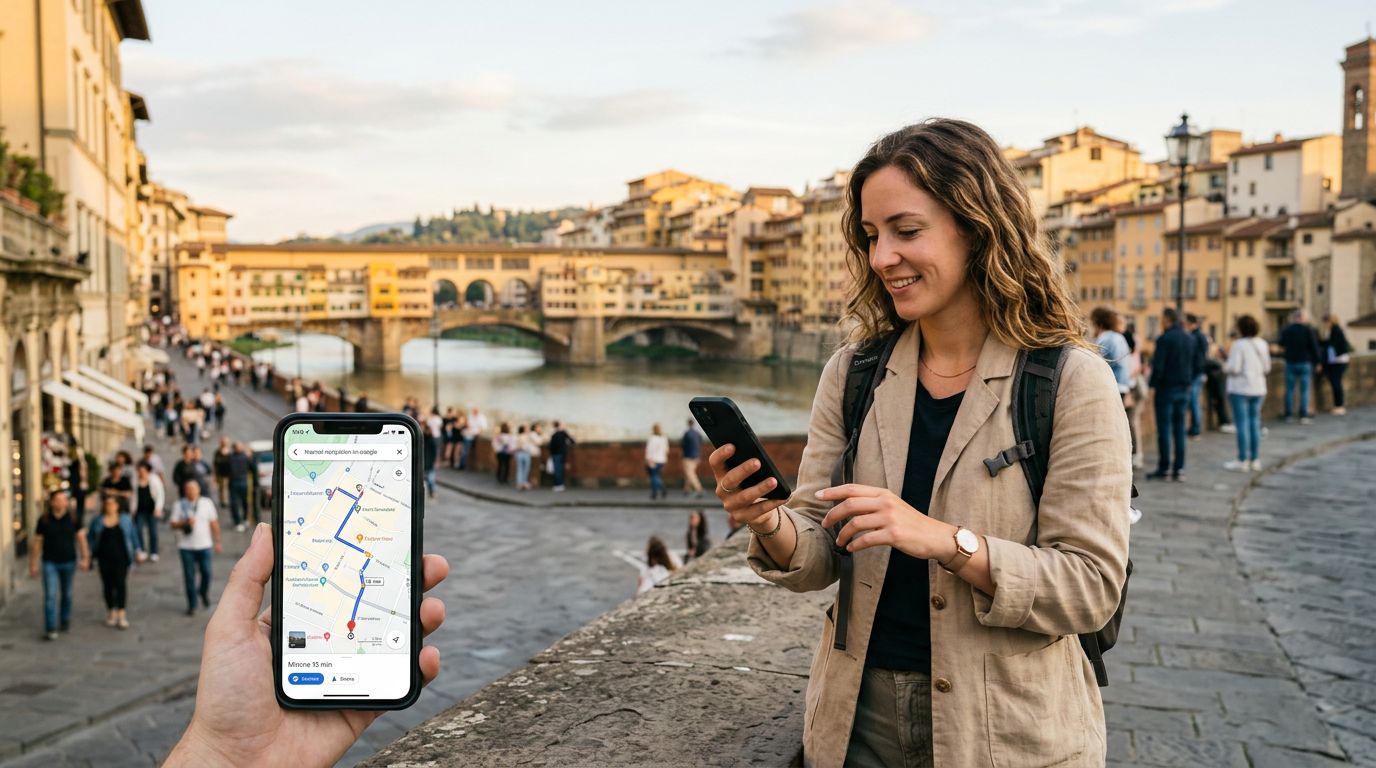
Preparing Your Device for Offline and Online Navigation
Before you step off the plane in a new country, ensuring your smartphone is configured correctly is the most important step for reliable navigation. Using a travel eSIM from OneTapSIM allows you to maintain a data connection as soon as you land, which is essential for real-time traffic updates, public transit schedules, and finding walking routes. However, relying solely on a live connection can sometimes be risky if you enter areas with poor cellular coverage.
To start, verify that your device is eSIM-compatible and unlocked. Once you have installed your OneTapSIM profile, go to your cellular settings and ensure that your travel eSIM is selected as the primary source for "Cellular Data." It is also helpful to toggle "Data Roaming" to the "On" position specifically for your eSIM line. This ensures that your phone treats the eSIM as your local provider, allowing your map applications to pull data seamlessly.
Beyond the initial setup, you should update your map applications before you leave your home Wi-Fi network. Whether you prefer Google Maps or Apple Maps, ensure the app is updated to the latest version. Older versions of these apps may not support the newest features, such as augmented reality walking directions or real-time transit alerts, which are incredibly useful when you are trying to find your way through a busy, unfamiliar city center.
Optimizing Map Settings for Travel
Once your eSIM is active, you need to configure your map applications to work efficiently with your data plan. Real-time navigation consumes data, but you can manage this usage to ensure your connection lasts throughout your entire trip.
In Google Maps, you can access your profile settings to manage how the app interacts with your data. One of the most effective strategies is downloading offline maps. By selecting a specific area—such as the city or region you are visiting—you can save the map data directly to your device. When you are offline or trying to conserve your eSIM data, the app will use these downloaded files to show you your location and provide turn-by-turn driving directions. While you might lose live traffic updates, the core navigation functionality remains fully operational.
For those using Apple Maps, the process is similarly straightforward. You can use the "Guides" feature to save locations you plan to visit, which helps you organize your itinerary before you leave. If you are concerned about data usage, check your phone’s cellular settings to see which apps are consuming the most data. You can restrict background data for non-essential apps, ensuring that your OneTapSIM data is prioritized for navigation and communication tools.
Another tip for using maps abroad is to keep your GPS enabled. While GPS itself does not use cellular data, it does consume battery life. Using a portable power bank is a smart addition to your travel gear, especially if you plan on spending long days walking and relying on your phone for directions. By keeping your device charged and your map settings optimized, you can move through a new city with the confidence of a local.
Troubleshooting Common Navigation Issues
Even with the best preparation, you might occasionally encounter issues while using maps abroad. If your blue dot is not moving or your route is not loading, the first step is to check your cellular signal strength. If you are in a remote area or a building with thick concrete walls, your signal might drop. In these instances, your offline maps will be your primary lifeline.
If you find that your maps are not updating, toggle your Airplane Mode on and off. This forces your phone to re-establish a connection with the local towers, which can often resolve minor connectivity glitches. If the issue persists, check your eSIM settings to ensure that the OneTapSIM line is still active and that the "Cellular Data" toggle is still set to the correct line. Sometimes, after a flight or a long period of inactivity, a device might default back to your home carrier’s settings, which could lead to unexpected charges or a lack of service.
Another common issue is the "GPS signal lost" error. This usually happens in dense urban areas with tall buildings, often called "urban canyons," where the signal from satellites is blocked. If this happens, try to move to a more open area or look for street signs to orient yourself. You can also manually adjust your map orientation to "North Up" rather than "Heading Up" if you are having trouble matching your surroundings to the screen.
Finally, remember that navigation is not just about driving. If you are using public transit, check the transit layer in your map app. It can provide you with platform numbers, departure times, and even exit recommendations for subway stations. By combining the reliable connectivity of a travel eSIM with the robust features of modern mapping software, you can focus on enjoying your journey rather than worrying about getting lost. Whether you are navigating a bustling metropolis or exploring a quiet village, having a consistent data source ensures that the world is always at your fingertips.