Understanding eSIM Hotspot Functionality
For many travelers, the ability to share a mobile data connection is essential. Whether you are working from a cafe, updating your travel blog, or ensuring your travel companions have access to maps and messaging, a mobile hotspot is a lifesaver. When transitioning to travel eSIMs, a common question arises: can you actually share your data? The short answer is yes. Most eSIMs function exactly like a physical SIM card, meaning if your device supports hotspot tethering, your eSIM data can be shared with other devices.
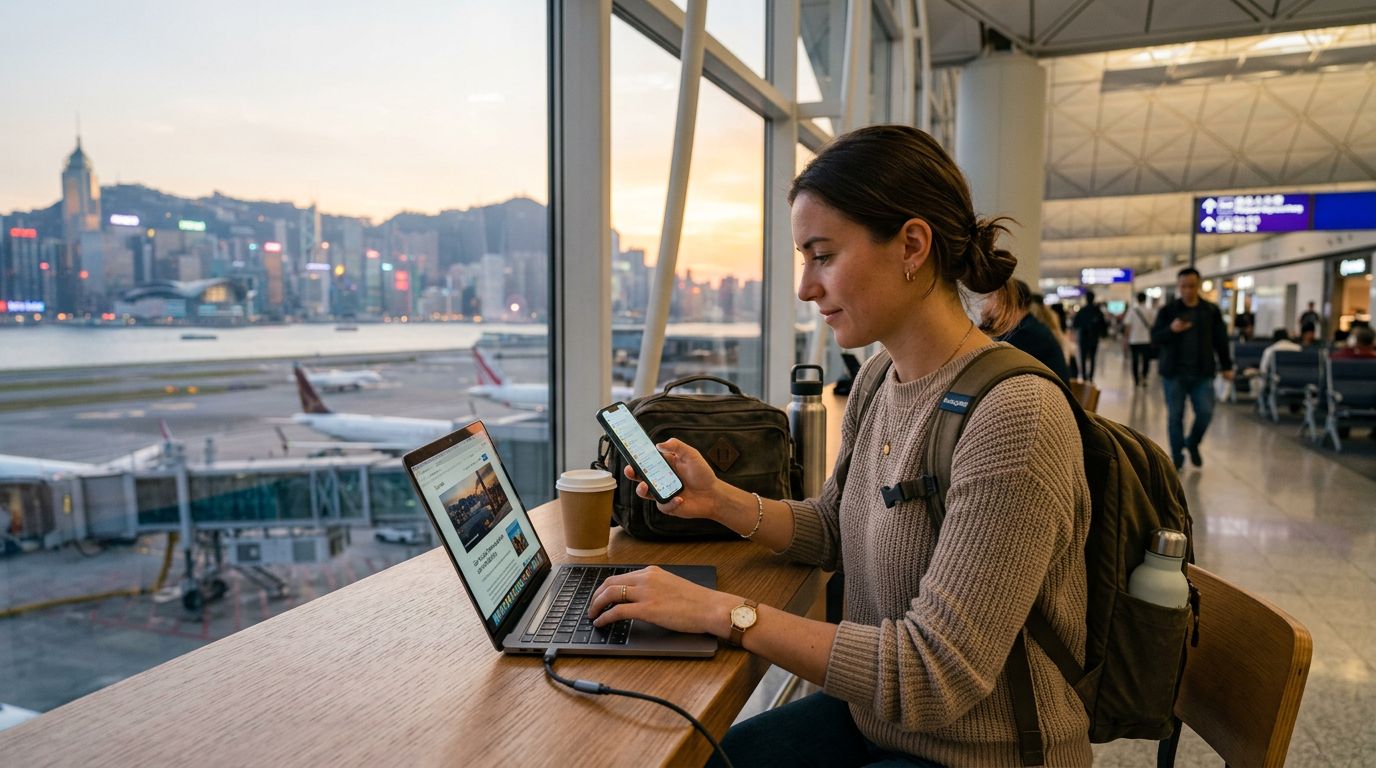
When you install a OneTapSIM profile on your phone, your device treats it as an additional cellular data source. Your phone’s operating system does not distinguish between a physical SIM and an eSIM when it comes to tethering capabilities. If your carrier settings allow it, you can turn your smartphone into a portable Wi-Fi router. This is particularly useful when you are in a location where public Wi-Fi is unreliable, insecure, or simply unavailable. By using your eSIM data as a hotspot, you maintain a private, secure connection for your laptop or tablet, avoiding the risks associated with open public networks.
However, it is important to remember that tethering uses data at the same rate as your phone. Because laptops and tablets often perform background updates or sync large files, data consumption can be higher than when browsing on a mobile screen. Monitoring your usage is a smart practice to ensure you have enough connectivity for the duration of your trip.
How to Enable Hotspot on iOS and Android
Configuring your device to share your eSIM data is a straightforward process, though the menus differ slightly depending on your operating system. Before you begin, ensure your eSIM is active and that your cellular data is toggled on.
For iPhone users, navigate to the Settings app. Tap on "Personal Hotspot." Ensure the toggle for "Allow Others to Join" is switched to the on position. You will see a Wi-Fi password listed there; this is the key other devices will need to connect to your network. If you want to ensure the fastest possible connection, keep the "Maximize Compatibility" setting off unless you are connecting an older device that cannot see your 5GHz signal. You can verify your Apple device settings through official documentation at support.apple.com.
For Android users, the path can vary slightly based on the manufacturer, but generally, you will go to Settings, then Network & Internet or Connections. Look for "Hotspot & tethering" or "Mobile Hotspot." Once inside this menu, you can toggle the hotspot on. It is highly recommended to configure your hotspot settings first—specifically, setting a strong password and choosing a WPA3 security protocol if your device supports it. This prevents unauthorized users nearby from tapping into your data allotment. You can find general troubleshooting and setup tips at support.google.com.
Once enabled, your phone will broadcast a Wi-Fi signal using the name of your device. On your secondary device—such as a laptop—simply search for available Wi-Fi networks, select your phone’s name, and enter the password you just created.
Troubleshooting Common Connectivity Issues
Even with the right settings, you might occasionally encounter issues where the hotspot fails to connect or the internet speed feels sluggish. Most of these problems are easy to fix with a few quick adjustments.
First, check your APN (Access Point Name) settings. While OneTapSIM is designed to configure automatically upon installation, sometimes the APN settings for tethering need to be manually verified. If you can browse the web on your phone but cannot connect via hotspot, go to your Cellular or Mobile Data settings, select your eSIM, and look for "Cellular Data Network" or "Access Point Names." Ensure the tethering APN field matches the data APN field provided in your setup instructions.
Second, consider signal strength. Hotspot tethering requires a stable connection to function well. If you are in a remote area or inside a building with thick walls, your phone may struggle to maintain a high-speed connection for multiple devices. Try moving closer to a window or an open area to improve your cellular reception.
Third, verify that your device is not in "Low Data Mode" or "Power Saving Mode." These modes often restrict background data and can automatically disable tethering or throttle the speed of your hotspot to conserve battery life. If your battery is low, your phone might prioritize its own operations over sharing data. Keeping your phone plugged into a power source while tethering is a best practice, as the hotspot function is quite demanding on battery life.
Finally, if you have multiple devices connected, remember that the bandwidth is being split. If you are trying to stream high-definition video on a laptop while a tablet is downloading updates in the background, your connection will naturally feel slower. Disconnecting idle devices is an effective way to reclaim speed for the tasks that matter most. By following these steps, you can reliably use your eSIM data to stay connected across all your devices, ensuring a smooth digital experience no matter where your travels take you.
Need data for your trip?
Browse eSIM plans for 190+ destinations, with instant QR delivery.
Browse destinations