Understanding How eSIM Tethering Works
When you travel abroad, staying connected is a priority, but managing how that connection is shared across your devices can be confusing. Many travelers ask whether they can use their eSIM data to provide internet access to their laptops, tablets, or even their travel companions’ phones. The short answer is yes. Tethering, often referred to as a mobile hotspot, works with an eSIM just as it would with a traditional physical SIM card.
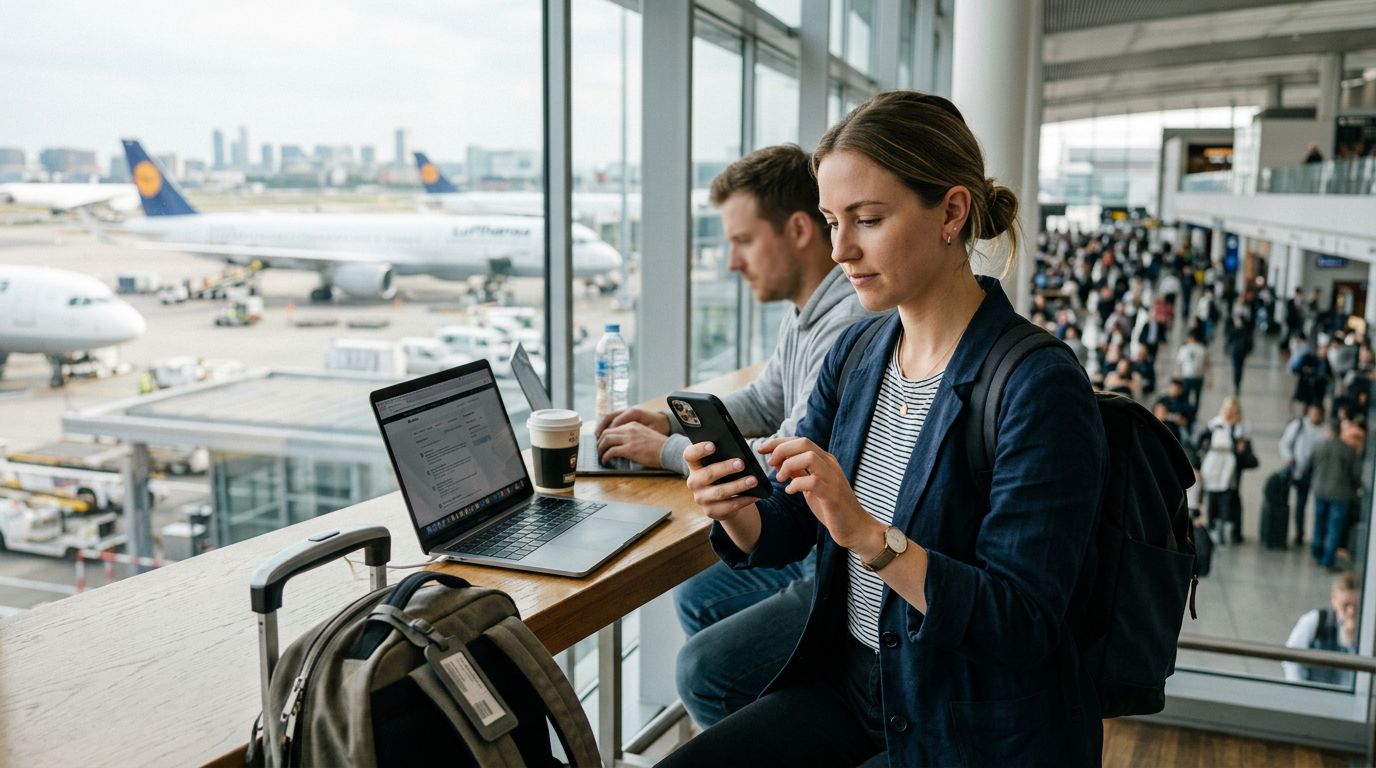
Tethering essentially turns your smartphone into a portable Wi-Fi router. When you activate a data plan through a provider like OneTapSIM, your phone receives a cellular signal that is converted into a local network. By enabling the hotspot feature in your phone’s settings, you broadcast this signal, allowing other devices to connect to the internet using the data allotment from your eSIM.
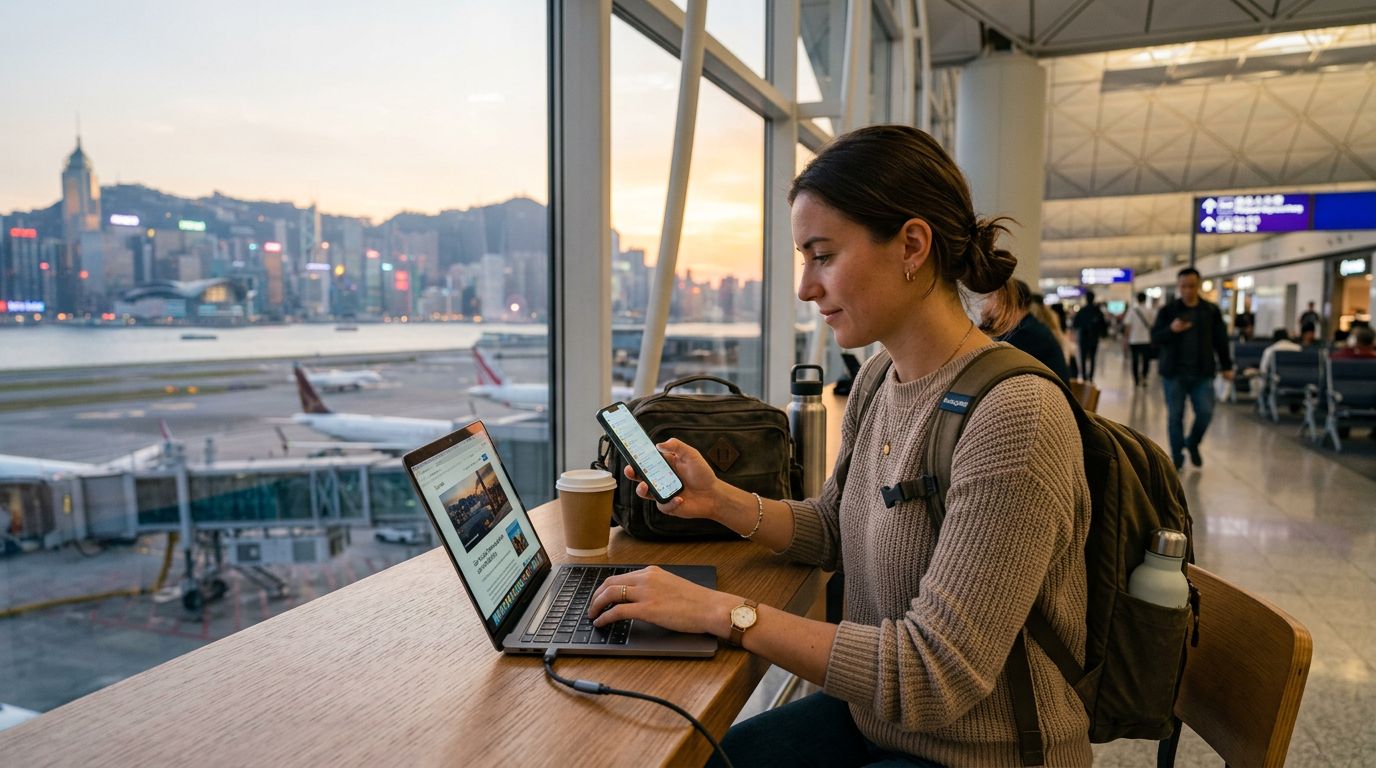
The technical process remains seamless because your phone does not distinguish between a physical SIM and an eSIM when it comes to data distribution. As long as your eSIM is active and has an available data balance, the operating system treats the connection as a standard cellular data source. This makes eSIMs an incredibly efficient solution for digital nomads, business travelers, or anyone who needs to work from a coffee shop or a hotel room without relying on potentially insecure or slow public Wi-Fi networks.
How to Enable Tethering on Your Devices
Configuring your hotspot is generally straightforward, but the steps can vary slightly depending on whether you use an iOS or Android device. Before you begin, ensure that your eSIM is set as the primary source for cellular data in your phone’s settings. If you have both a physical SIM and an eSIM installed, your phone needs to know which one should provide the data for the hotspot.
For iPhone users, you can typically find these settings by visiting the official support pages at support.apple.com. Generally, you navigate to your cellular settings, select your eSIM plan, and ensure that "Data Roaming" is toggled on if required by your specific plan. Once that is confirmed, go to the Personal Hotspot menu in your main settings. Here, you can toggle the "Allow Others to Join" switch. It is highly recommended to set a strong, unique password for your hotspot to prevent unauthorized users from consuming your data.
On Android devices, the menu structure can vary by manufacturer, but the principle is consistent. You will usually find the hotspot settings under "Network & Internet" or "Connections." Look for "Hotspot & Tethering." Once you enable the Wi-Fi hotspot, you can configure the network name and password. If you encounter any issues, checking the documentation at support.google.com can provide specific guidance for your particular device model.
When using OneTapSIM, the configuration remains standard. Because these eSIMs are designed to function like local data plans, they do not impose artificial restrictions on tethering. If your phone supports the feature, the eSIM will support it. However, always remember that tethering consumes data at a much faster rate than browsing on your phone alone. Because laptops and tablets often perform background updates, cloud syncing, and high-resolution streaming, your data usage will increase significantly when other devices are connected.
Best Practices for Managing Data While Tethering
While the ability to share your connection is a massive convenience, it requires a bit of discipline to ensure your data lasts for the duration of your trip. When you connect a laptop to your phone’s hotspot, the computer often assumes it is on a high-speed, unlimited home network. This can lead to the automatic download of large operating system updates or the syncing of heavy media files, which can deplete your data balance in a matter of minutes.
To manage this, you should adjust your laptop’s network settings to "Metered" or "Data Saver" mode. On Windows, this prevents the system from downloading non-essential updates while connected to your hotspot. On macOS, you can achieve similar results by pausing cloud backup services like iCloud or Dropbox while you are on the go.
Another tip is to monitor your data usage directly through your phone’s settings. Most smartphones provide a breakdown of how much data each application has consumed. By keeping an eye on these statistics, you can identify if a specific app is running in the background and draining your connection. If you are traveling in a group, be mindful of how many people are connected to your hotspot. Each connected device adds to the load on your phone’s battery and the speed of the connection.
Battery life is another critical factor. Tethering is a power-intensive task. It keeps the cellular radio active and requires the processor to manage the Wi-Fi broadcast simultaneously. If you plan on tethering for an extended period, it is wise to keep your phone plugged into a power bank or a wall outlet. If you are in a remote area, remember that the phone will work harder to maintain a signal, which can accelerate both battery drain and data consumption.
Finally, consider the security of your connection. Always use WPA3 or WPA2 security protocols for your hotspot password. This ensures that the data being transmitted between your laptop and your phone is encrypted, protecting you from potential threats on public networks. Using an eSIM from a reputable provider like OneTapSIM gives you the flexibility you need, but your own device management habits will determine how effectively you can utilize that connection throughout your travels. By taking these small precautions, you can enjoy the freedom of having your own private, secure internet connection anywhere your travels take you.
Need data for your trip?
Browse eSIM plans for 190+ destinations, with instant QR delivery.
Browse destinations