Understanding How Mobile Hotspots Work While Traveling
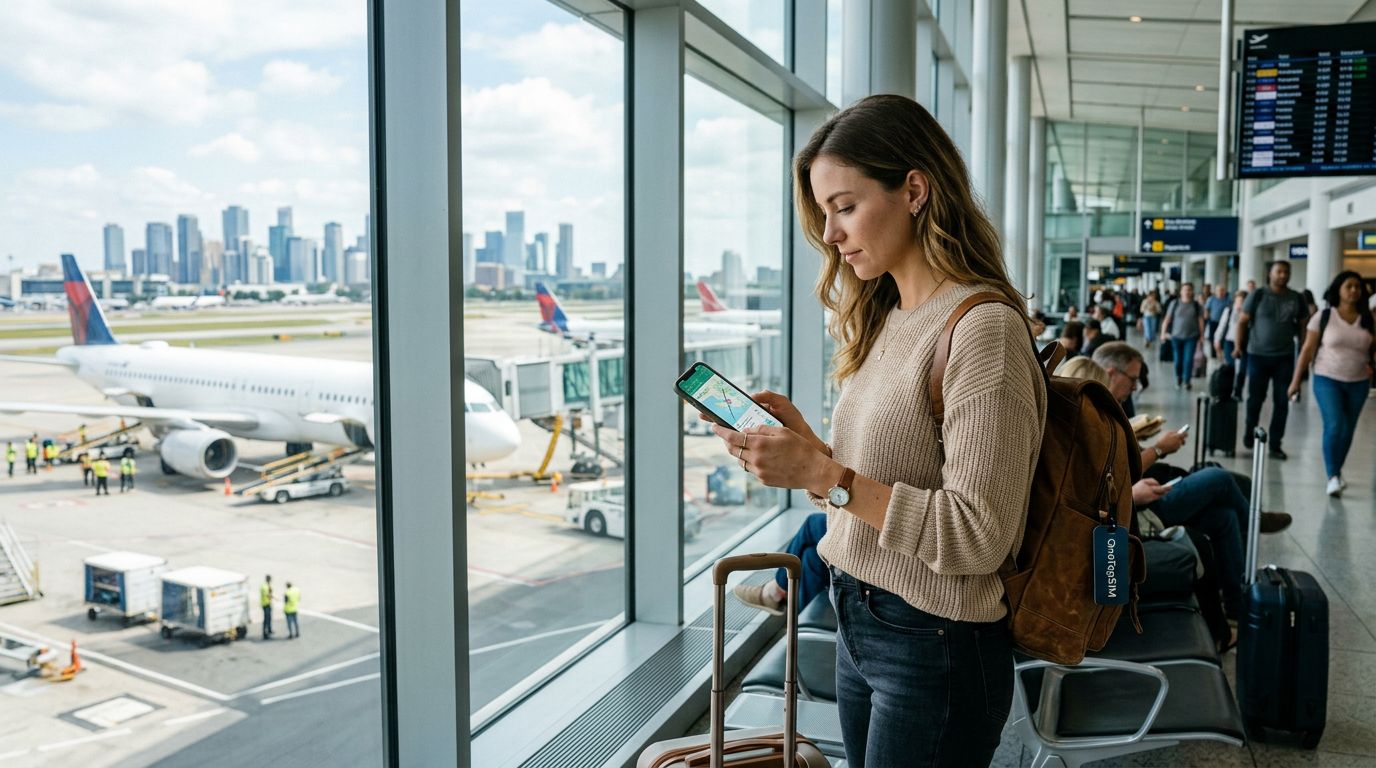
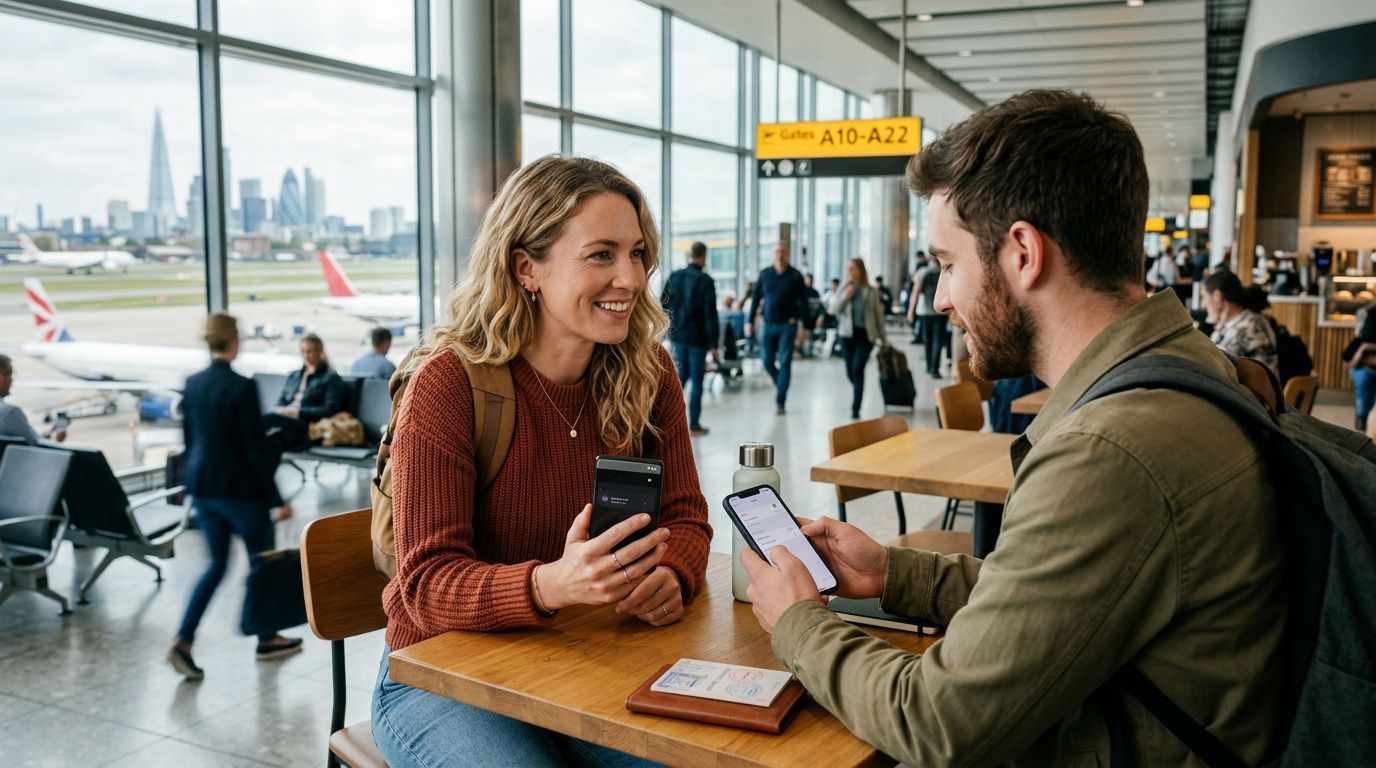
When you travel internationally, staying connected is often a primary concern. Whether you need to check maps, respond to work emails, or upload photos of your journey, having reliable internet access is essential. Many travelers rely on their smartphones as their primary connection point, but there are times when you need to provide internet to a laptop, a tablet, or a travel companion’s device. This is where using mobile hotspot while roaming abroad becomes a practical solution.
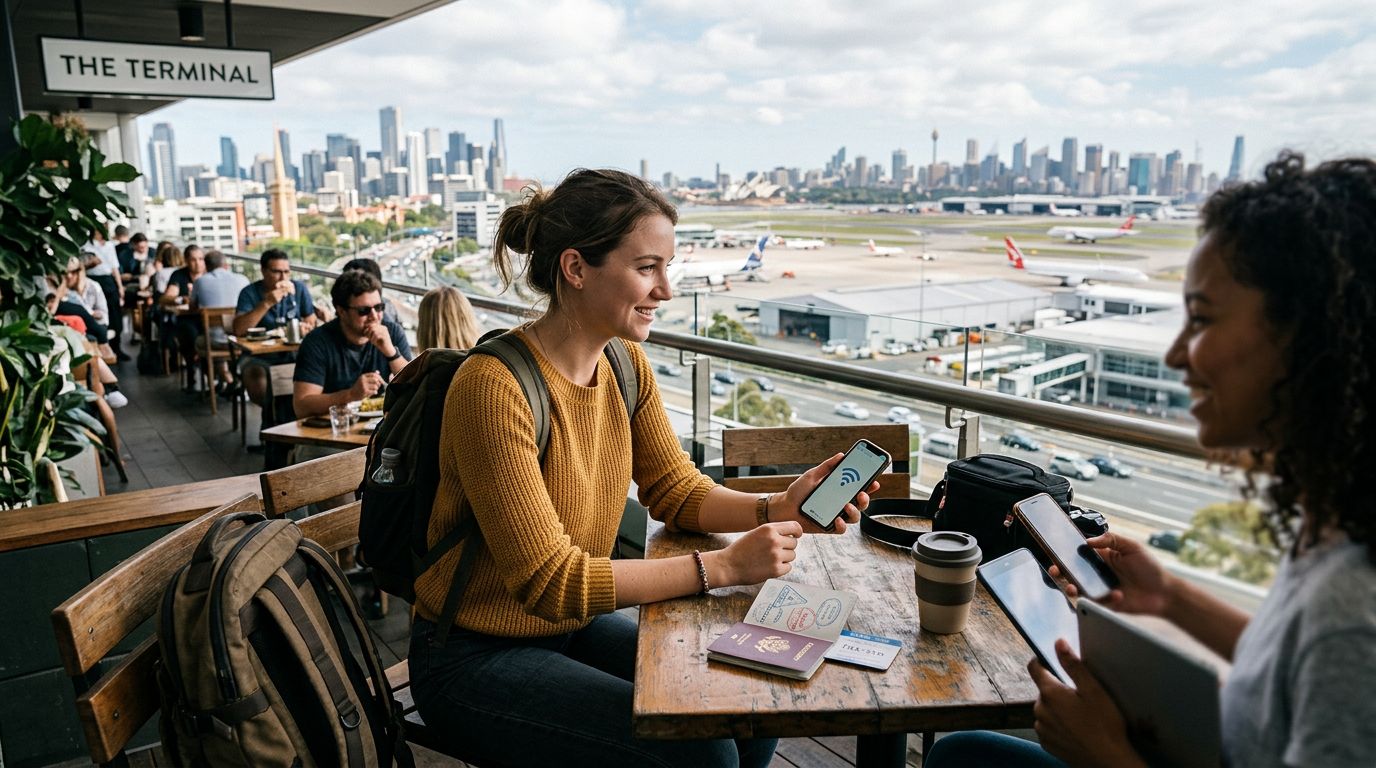
A mobile hotspot, sometimes called tethering, allows your smartphone to share its cellular data connection with other devices via Wi-Fi, Bluetooth, or a USB cable. Essentially, your phone acts as a mini router, pulling in a signal from a local cellular tower and broadcasting it to nearby devices. While this feature is built into almost every modern smartphone, the way it functions while roaming depends heavily on the type of data plan you are using.
If you are using a traditional carrier roaming plan, tethering might be restricted or subject to specific data caps. Some carriers treat hotspot data differently than phone data, sometimes throttling speeds or limiting the amount you can share. This can lead to unexpected connectivity issues just when you need your devices the most. By contrast, using a dedicated travel eSIM, such as OneTapSIM, often provides a more streamlined experience. Because these services are designed specifically for international travel, they are generally optimized to support hotspot functionality, allowing you to share your connection across your devices without the complex restrictions often found in legacy roaming contracts.
Best Practices for Managing Data Consumption
The biggest challenge when using a mobile hotspot while roaming abroad is the speed at which you can burn through your data allotment. Laptops and tablets are designed to perform background tasks—such as software updates, cloud synchronization, and high-resolution media streaming—that can consume gigabytes of data in a matter of minutes. When you connect these devices to your phone’s hotspot, they often do not realize they are on a metered connection.
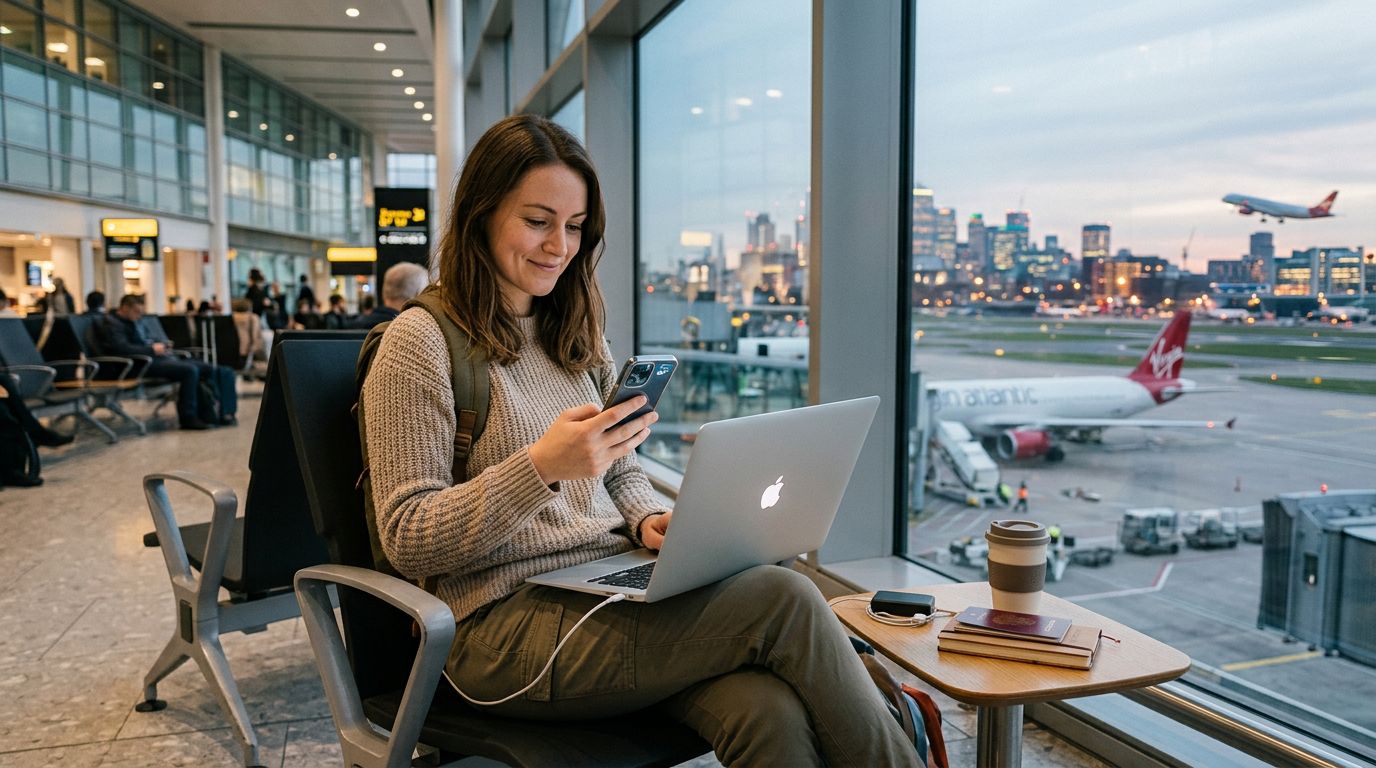
To manage your data effectively, you should adjust the settings on your secondary devices before you connect. On a laptop, ensure that your operating system is set to "metered connection" mode. This setting prevents the computer from automatically downloading large system updates or syncing heavy files while you are tethered. Additionally, close any unnecessary background applications that might be pulling data, such as cloud storage apps, video conferencing software, or browser tabs that auto-play videos.
Another tip is to monitor your data usage directly from your phone’s settings menu. Most smartphones provide a breakdown of how much data has been used by the "Personal Hotspot" or "Tethering" feature. By keeping an eye on this, you can avoid hitting your limit prematurely. If you find that you are frequently running out of data, consider opting for a flexible eSIM solution like OneTapSIM, which allows you to monitor your remaining balance easily and add more data if your usage patterns change during your trip. Being mindful of these habits ensures that your hotspot remains a helpful tool rather than a source of frustration.
Troubleshooting Common Connection Issues
Even with the best preparation, technical hiccups can occur when you are trying to share a connection in a foreign country. If you find that your devices are failing to connect to your phone’s hotspot, the first step is to verify that your cellular data is active and that you have a strong signal from the local network. Sometimes, simply toggling your phone’s Airplane Mode on and off can force the device to re-register with the local tower, which often resolves connectivity glitches.
If the signal is strong but your laptop or tablet cannot see the hotspot, check the frequency band settings. Some devices are set to broadcast a 5GHz Wi-Fi signal, which is faster but has a shorter range and may not be compatible with older hardware. If you are having trouble, try switching your hotspot settings to 2.4GHz in your phone's network configuration. This frequency is more universally compatible and can penetrate obstacles better, which is helpful if your devices are not right next to each other.
Security is also a factor to consider. Always ensure that your mobile hotspot is protected with a strong, unique password. Public Wi-Fi networks in airports or cafes can be risky, and while your personal hotspot is a private network, leaving it unsecured can lead to unauthorized devices connecting and draining your data. If you are using a service like OneTapSIM, you benefit from the security of a direct cellular connection rather than relying on potentially compromised public hotspots.
If you continue to experience issues, check the support pages provided by your device manufacturer. For users with Apple devices, the official support documentation provides detailed steps on troubleshooting tethering problems, while Google’s support resources offer similar guidance for Android users. Often, a simple restart of both the host phone and the connected device is enough to clear temporary software conflicts. By understanding these basic troubleshooting steps, you can maintain a stable connection throughout your travels, ensuring that you stay productive and connected no matter where your journey takes you.