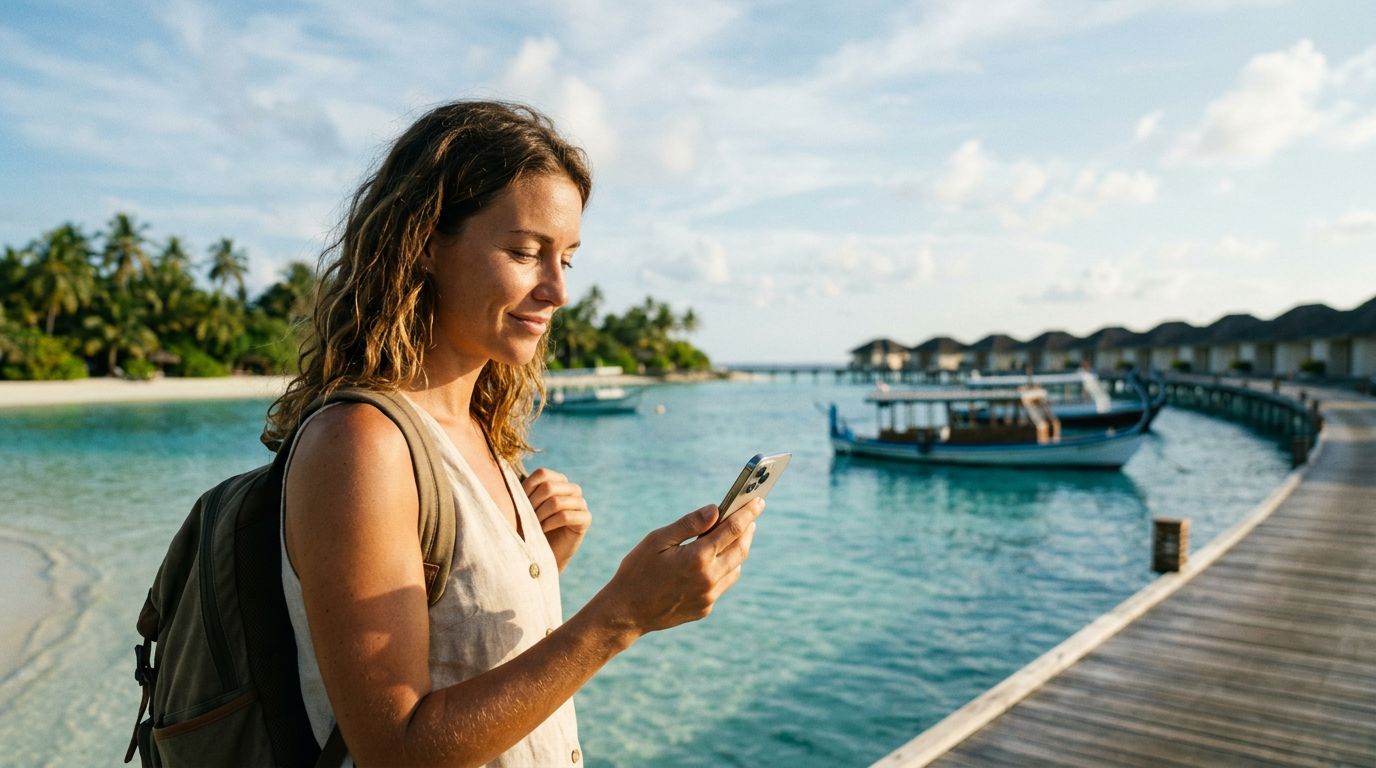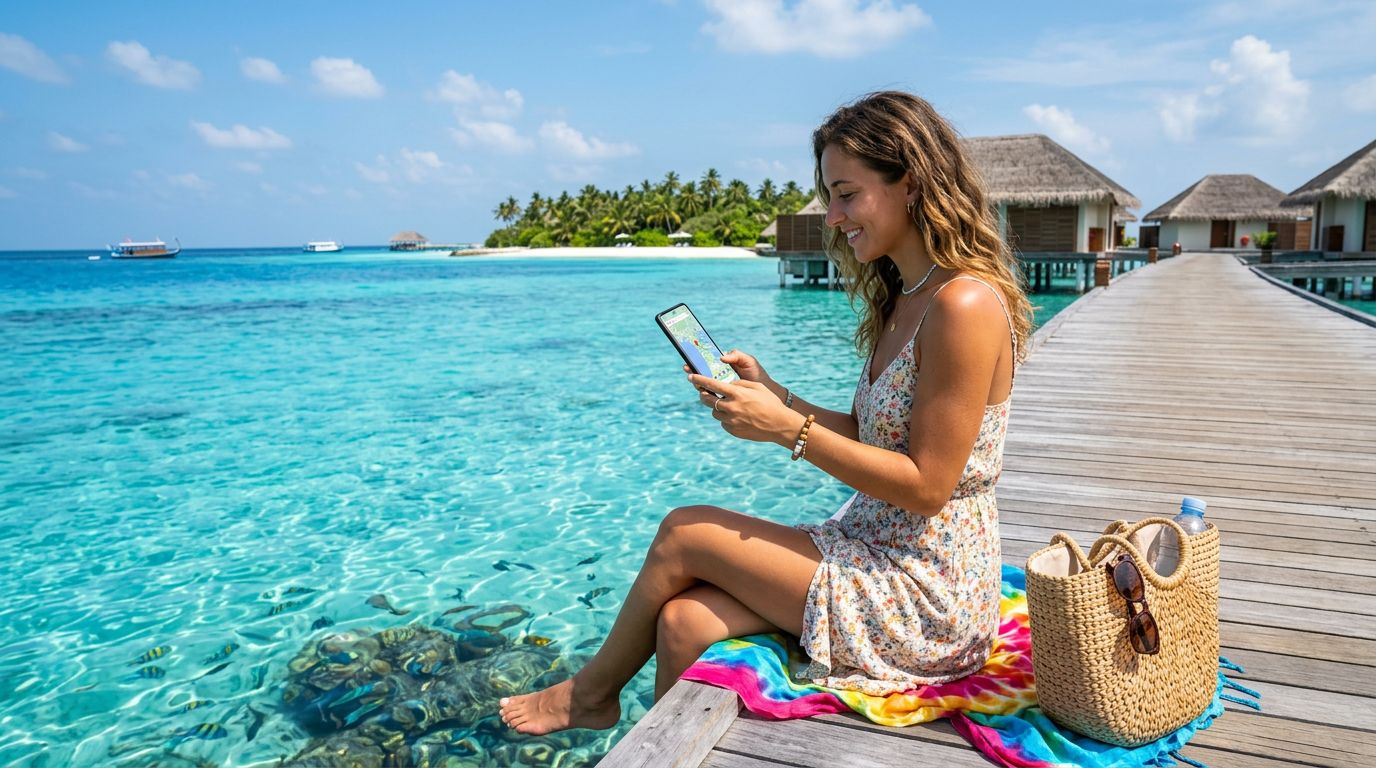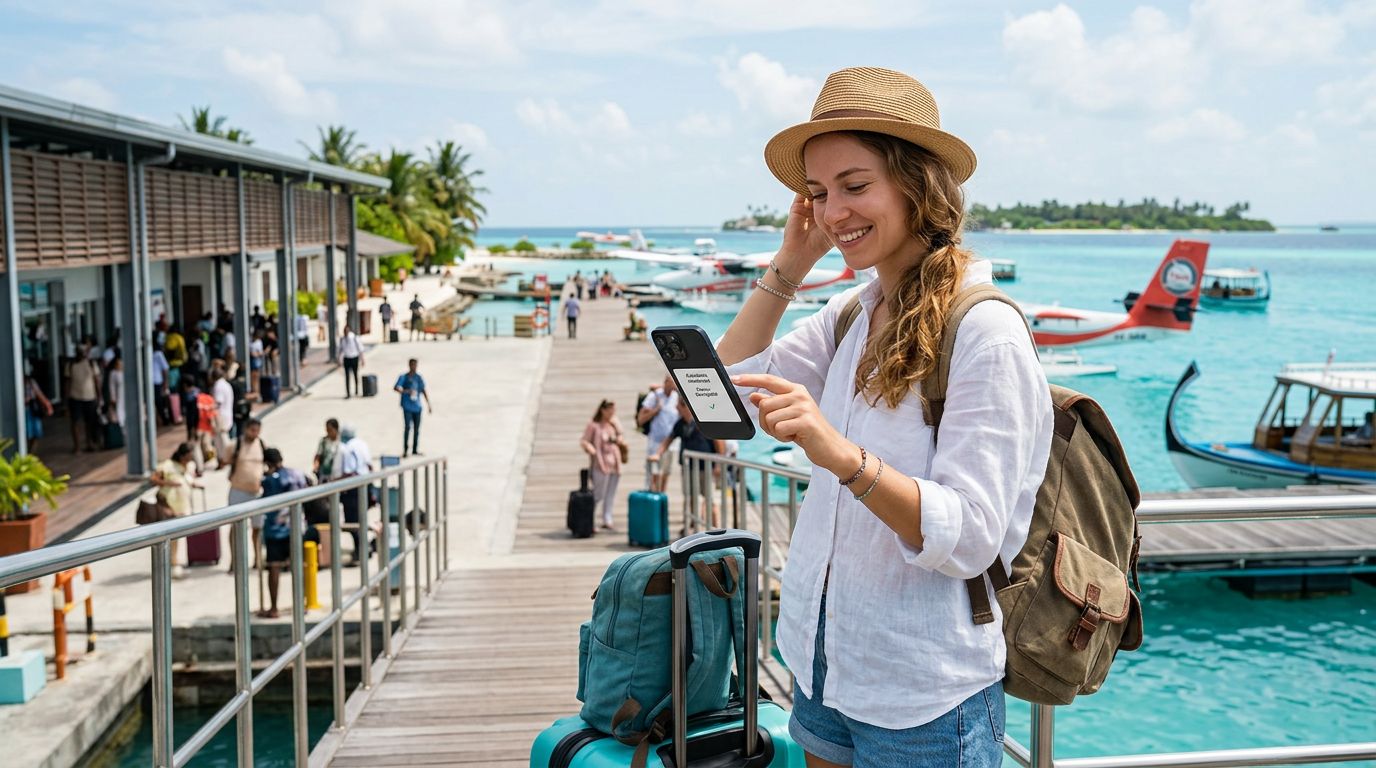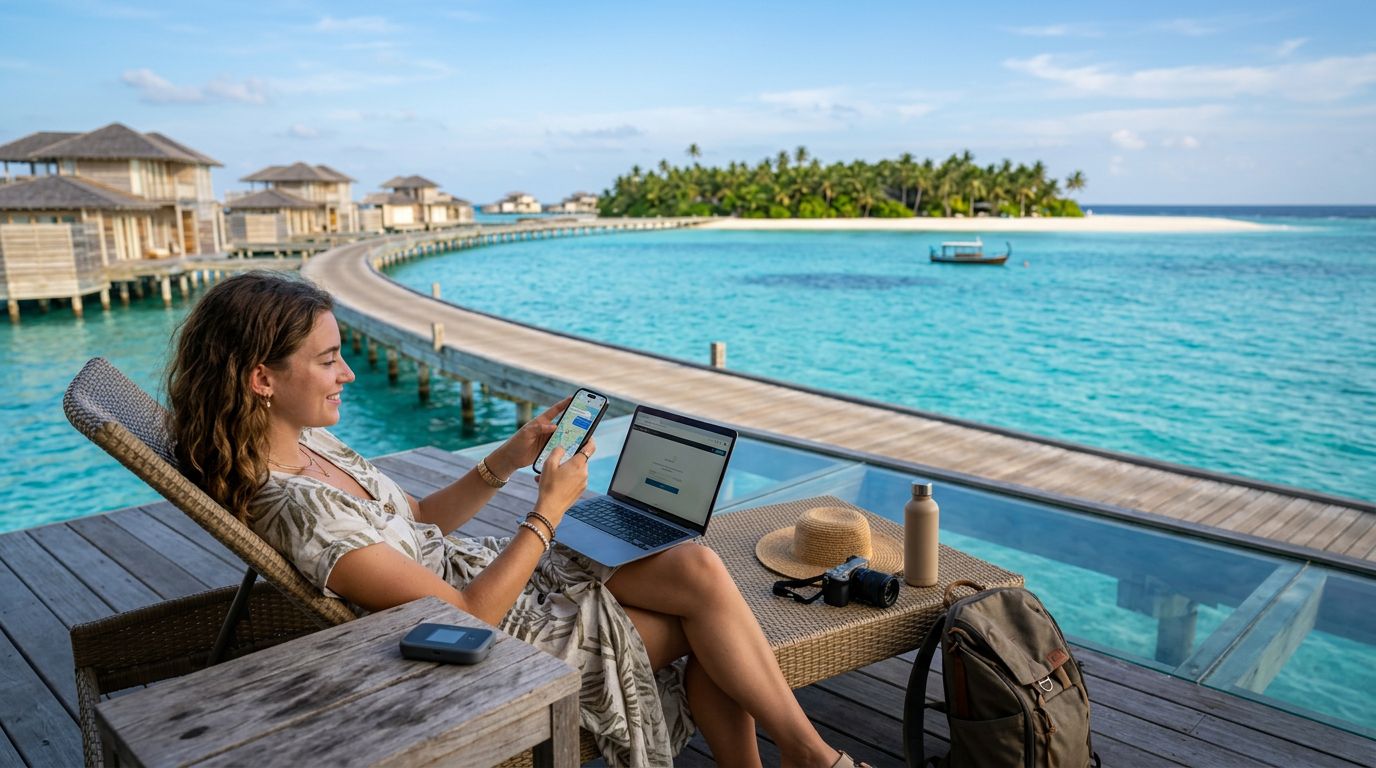
The Maldives is a paradise of turquoise lagoons, white sandy beaches, and overwater bungalows. Whether you are a digital nomad working from a remote island or a traveler eager to share high-resolution photos of your sunset cruise, staying connected is essential. A common question among visitors is how to use hotspot in Maldives effectively without relying on unstable hotel Wi-Fi.
Using your smartphone as a mobile hotspot is the most convenient way to keep your laptop, tablet, or secondary devices connected while you are on the move. By turning your phone into a portable router, you gain the freedom to work or browse from the beach, a boat, or your private villa.
Understanding Mobile Connectivity in the Maldives
The Maldives is an archipelago, which means connectivity can vary significantly depending on your location. While major resorts and the capital, Malé, have robust infrastructure, remote islands may rely on different cellular towers. To ensure a stable hotspot connection, you need a reliable data source.
Traditional roaming plans from your home carrier are often expensive and can be restrictive. Many travelers now prefer using an eSIM, such as OneTapSIM, to manage their data needs directly from their devices. An eSIM allows you to activate a local data profile without needing to swap physical SIM cards. Once your eSIM is active and you have a solid signal, sharing that connection via a hotspot is straightforward.
To get the best performance, ensure your phone is set to the preferred network mode in your settings. If you are in a remote area, you might find that 4G or LTE is more stable than 5G. Configuring your device to prioritize these stable bands can prevent your hotspot from dropping out during important tasks or video calls. Always check that your data roaming is toggled "on" for the eSIM profile, as this is necessary for the connection to bridge to your other devices.
Configuring Your Hotspot for Optimal Performance
Setting up a hotspot is generally intuitive, but there are a few technical steps to ensure it works seamlessly with your other devices. On an iPhone or Android device, the hotspot feature creates a private Wi-Fi network that your laptop or tablet can join.
For iPhone users, navigate to your settings menu and look for the Personal Hotspot option. Ensure "Allow Others to Join" is toggled on. You can set a custom password to keep your connection secure. If you are using an eSIM from OneTapSIM, your phone will use that data plan as the primary source for the hotspot. It is important to rename your hotspot to something unique so you can easily identify it when connecting your laptop.
On Android devices, the process is similar. Go to your network settings and find "Hotspot & Tethering." Here, you can configure the band settings. If you are close to your phone, choosing the 5GHz band will provide faster speeds, but if you are moving around or have obstacles between your devices, the 2.4GHz band offers better range and stability.
One common mistake travelers make is forgetting to manage background data usage. When you connect a laptop to a phone hotspot, the computer may attempt to download large updates or sync cloud files automatically. To prevent your data from depleting rapidly, ensure your laptop is set to "Metered Connection" mode. This tells your computer to pause background updates while using the mobile network.
Troubleshooting Common Hotspot Issues
Even with a strong signal, you may occasionally run into connectivity hurdles. If your laptop cannot find your phone's hotspot, the first step is to toggle the hotspot off and back on again. Sometimes, the broadcast signal needs a quick reset to refresh the handshake between devices.
Another issue involves APN (Access Point Name) settings. While most modern eSIM providers like OneTapSIM configure these automatically, some devices may require a manual entry if the data connection is active but the hotspot is not sharing the internet. You can usually find these settings under your cellular or mobile network configuration menu. Ensure the APN matches the requirements provided by your service provider.
Battery management is another factor to consider. Running a hotspot consumes a significant amount of power because the phone is simultaneously maintaining a cellular connection and broadcasting a Wi-Fi signal. If you plan to use your hotspot for an extended period, keep a power bank handy. Additionally, try to keep your phone in a cool, shaded area. Direct sunlight on a beach can cause your phone to overheat, which often leads the device to throttle performance or shut down the hotspot feature entirely to protect the hardware.
Finally, keep an eye on your data usage. While many eSIM plans offer generous amounts of data, streaming high-definition video or participating in long video conferences will consume your allowance faster than browsing text-based websites or checking emails. By monitoring your usage through your phone’s built-in data tracking tools, you can ensure you stay connected throughout your entire stay in the Maldives.
If you find that your connection speed is slow despite having full bars, try moving closer to a window or an open area. The thick walls of some resort villas, which are often built with concrete or stone, can block cellular signals. By positioning your phone near a window or outdoors, you will likely see an immediate improvement in your hotspot performance. With these tips, you can enjoy the beauty of the Maldives while staying productive and connected on your own terms.