Preparing Your Device for Brunei Connectivity
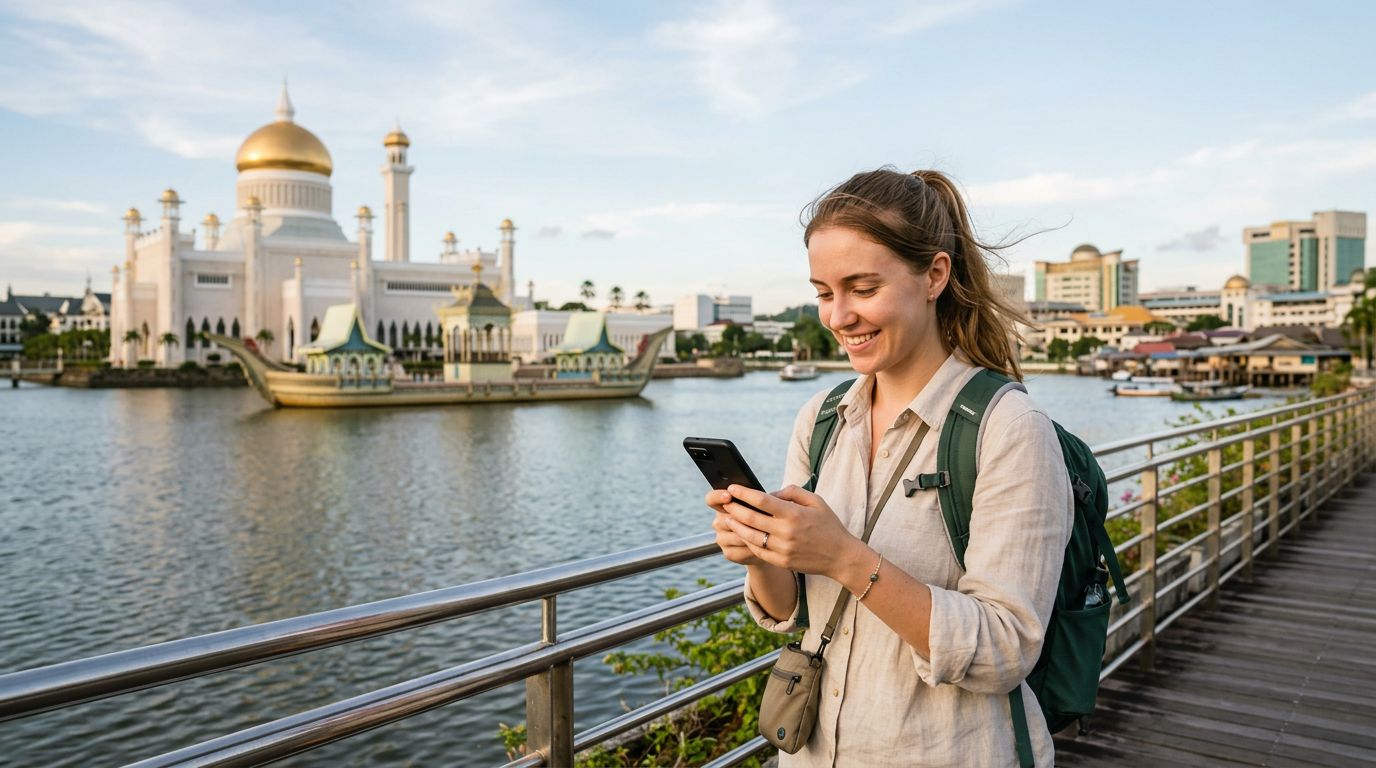
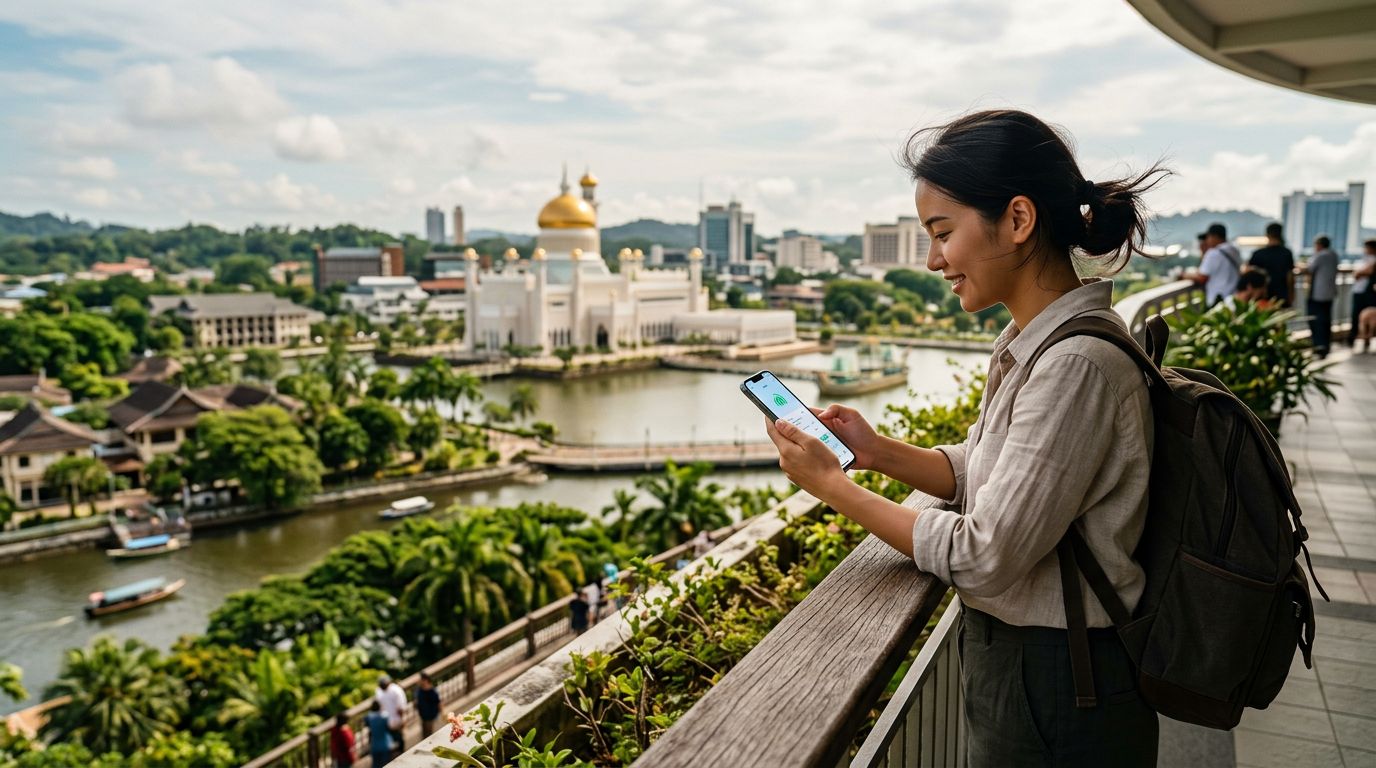
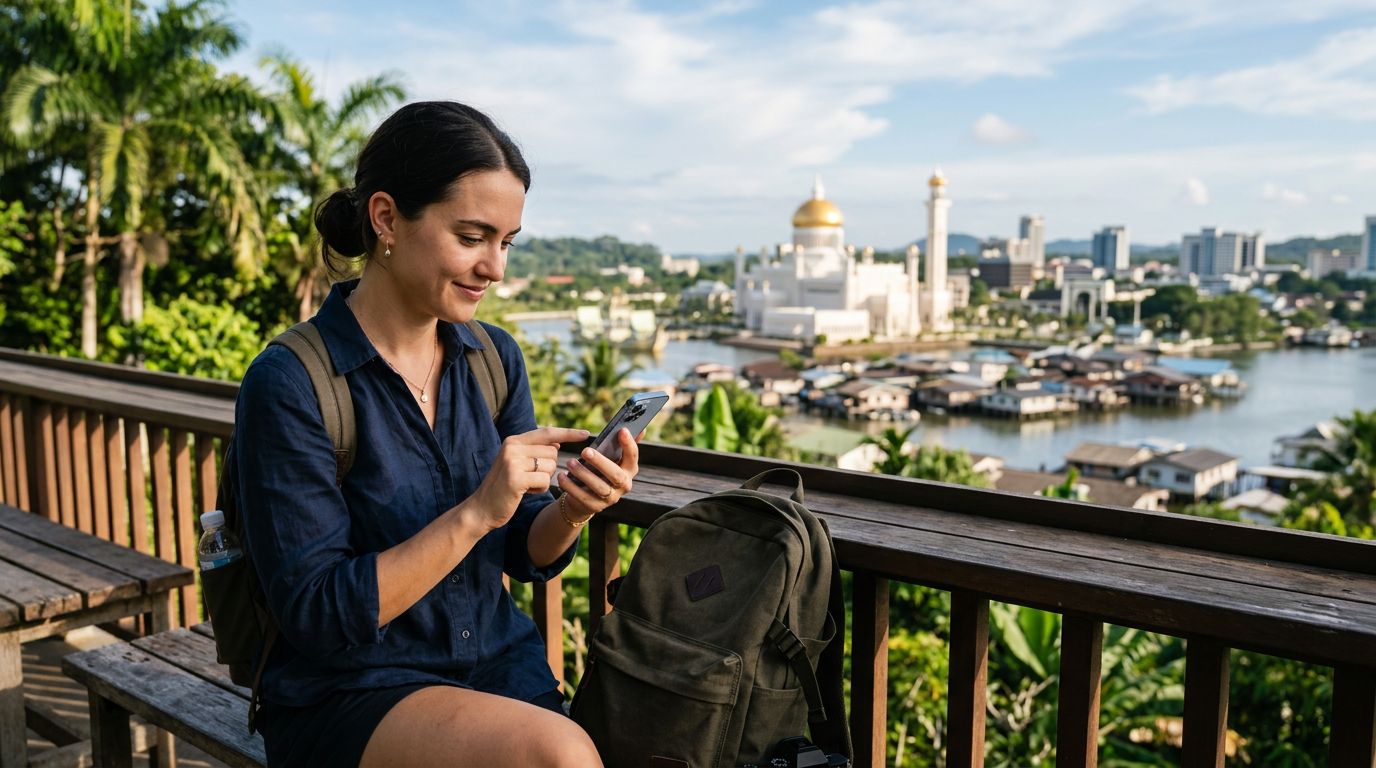
Brunei Darussalam is a hidden gem in Southeast Asia, offering a unique blend of opulent mosques, lush rainforests, and a serene pace of life. Whether you are planning to visit the iconic Sultan Omar Ali Saifuddien Mosque or exploring the pristine Ulu Temburong National Park, maintaining a reliable internet connection is essential. Modern travelers are increasingly moving away from traditional physical SIM cards in favor of eSIM technology, which offers a seamless way to stay connected without the hassle of swapping tiny plastic chips at the airport.
Before you begin the process of activating your travel eSIM for a Brunei trip, you must ensure that your device is compatible. Most smartphones manufactured within the last few years support eSIM functionality. You can verify this by checking your phone’s settings menu under the cellular or mobile data section. If you see an option to "Add eSIM" or "Add Cellular Plan," your device is ready to go. Additionally, your phone must be carrier-unlocked. If you purchased your phone through a mobile service provider, it might be locked to their network. Contact your provider before your departure to ensure your device is unlocked, allowing you to use a travel eSIM from a provider like OneTapSIM without restrictions.
Preparation also involves checking your data needs. Brunei offers excellent coverage in urban areas like Bandar Seri Begawan, but connectivity can become more sparse as you venture into the deep jungle regions. By choosing a travel eSIM, you gain the advantage of connecting to local networks as soon as you land, avoiding the roaming fees often associated with your home carrier. Once you have confirmed device compatibility and unlocked your phone, you are ready to proceed with the installation process.
Step-by-Step Installation and Activation
The beauty of using OneTapSIM for your travels lies in the simplicity of the installation process. Once you have selected your preferred data package for Brunei, you will typically receive a QR code or a manual activation code via email. It is highly recommended to complete the installation while you are still at home or in a location with a stable Wi-Fi connection, rather than waiting until you arrive at the Brunei International Airport.
For iPhone users, the process is straightforward. Navigate to your Settings, select Cellular or Mobile Data, and tap "Add eSIM." You can then scan the QR code provided by your eSIM service. If you are unable to scan the code, most devices allow you to enter the details manually, such as the SM-DP+ address and activation code provided by your service provider. Once the eSIM profile is downloaded, label it clearly—for example, "Brunei Trip"—so you can easily distinguish it from your primary home SIM.
Android users will follow a similar path. Within your Settings menu, look for "Network & Internet" or "Connections," then select "SIM Manager" or "Mobile Network." Choose the option to add an eSIM and follow the on-screen prompts to scan your QR code. After the profile is successfully added, ensure that your phone is set to use the eSIM for mobile data. You may want to keep your home SIM active for calls or texts if necessary, but remember to toggle off "Data Roaming" for your home SIM to prevent accidental charges. When you touch down in Brunei, simply turn on your OneTapSIM profile, and your device should automatically register with a local network, providing you with instant access to maps, translation apps, and social media.
Managing Your Connection and Troubleshooting Tips
Once you have successfully activated your travel eSIM for a Brunei trip, managing your data usage becomes a simple task. Because eSIMs are digital, you can monitor your consumption directly through your phone’s settings. Most smartphones provide a breakdown of how much data each app is using, which is helpful if you want to conserve your balance for essential tasks like navigation or checking flight updates.
If you encounter issues upon arrival, do not panic. The most common solution is to toggle "Airplane Mode" on and off. This forces your device to re-scan for available local towers. If that does not work, ensure that your data roaming is turned on specifically for the eSIM profile. Note that "Data Roaming" in this context refers to the connection between the local Brunei network and the eSIM provider, which is required for the service to function correctly. You should also verify that your APN (Access Point Name) settings match the instructions provided by your eSIM service. These settings are usually configured automatically, but in rare instances, a manual adjustment may be required.
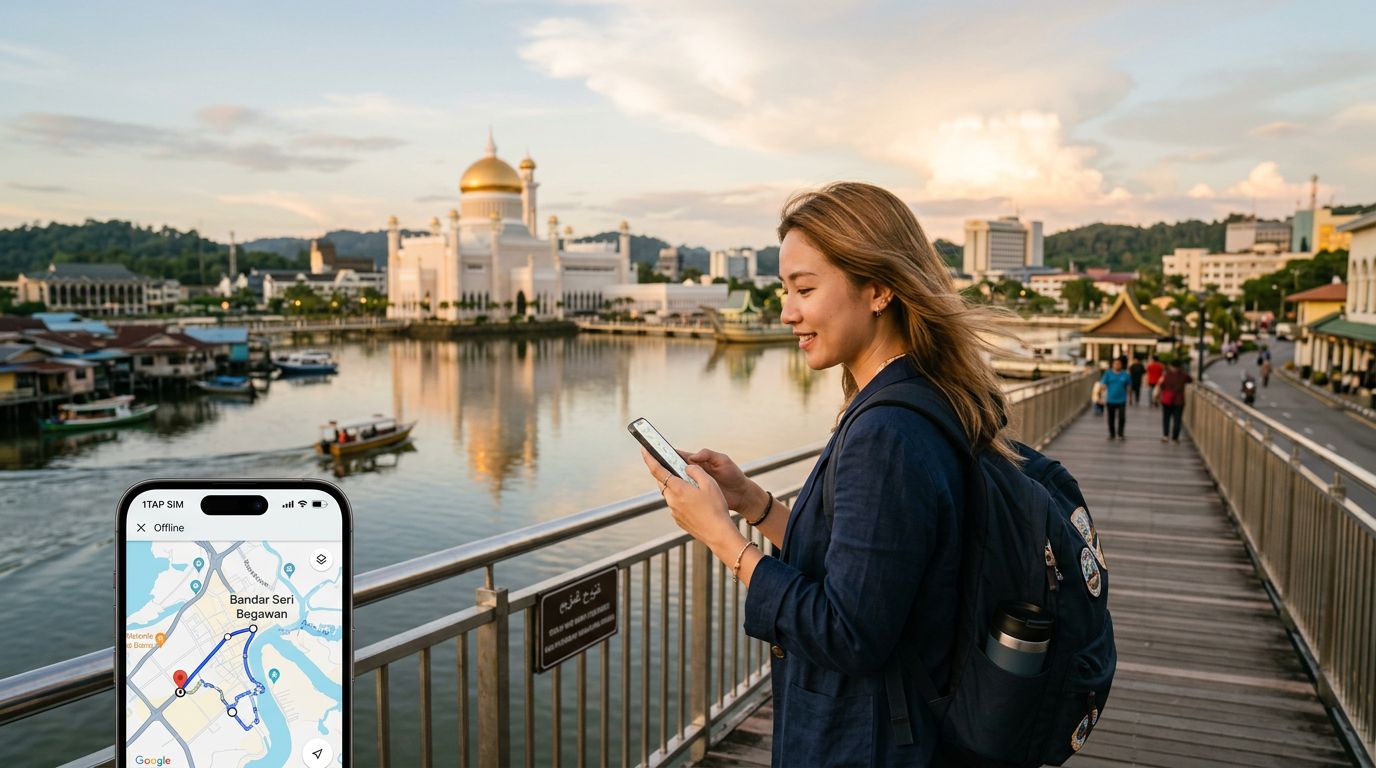
Another tip for a smooth experience is to download offline maps of Brunei before you leave your hotel or accommodation. While the coverage in the capital is excellent, having offline access to maps ensures you can navigate even if you enter an area with a weaker signal. If you find that you are running low on data, many providers allow you to purchase additional data directly through their website or app. By keeping your OneTapSIM profile active, you can easily top up your connection without needing to acquire a new physical card.
Finally, remember that your eSIM is tied to your device. If you plan to switch phones during your trip, you generally cannot move the eSIM from one device to another once it has been installed. Always ensure you are installing the eSIM on the device you intend to carry throughout your journey. By following these steps and preparing in advance, you can focus on enjoying the majestic rainforests and the rich cultural heritage of Brunei, confident that your digital connection is secure and reliable. Whether you are documenting your visit to the Royal Regalia Museum or sharing photos of the water village, your travel eSIM serves as an invisible, efficient companion for your entire adventure.
Get an eSIM for
Plans for the destinations covered in this guide, with instant QR delivery.