Understanding Connectivity Challenges in Mauritania
Mauritania is a land of vast landscapes, from the sweeping dunes of the Sahara to the rugged Atlantic coastline. For travelers, this unique geography presents a distinct set of connectivity hurdles. While major urban centers like Nouakchott and Nouadhibou have developed mobile infrastructure, maintaining a reliable internet connection while moving between regions or exploring remote desert sites can be difficult. Traditional roaming services often come with restrictive policies, high latency, or sudden drops in service when transitioning between local towers.
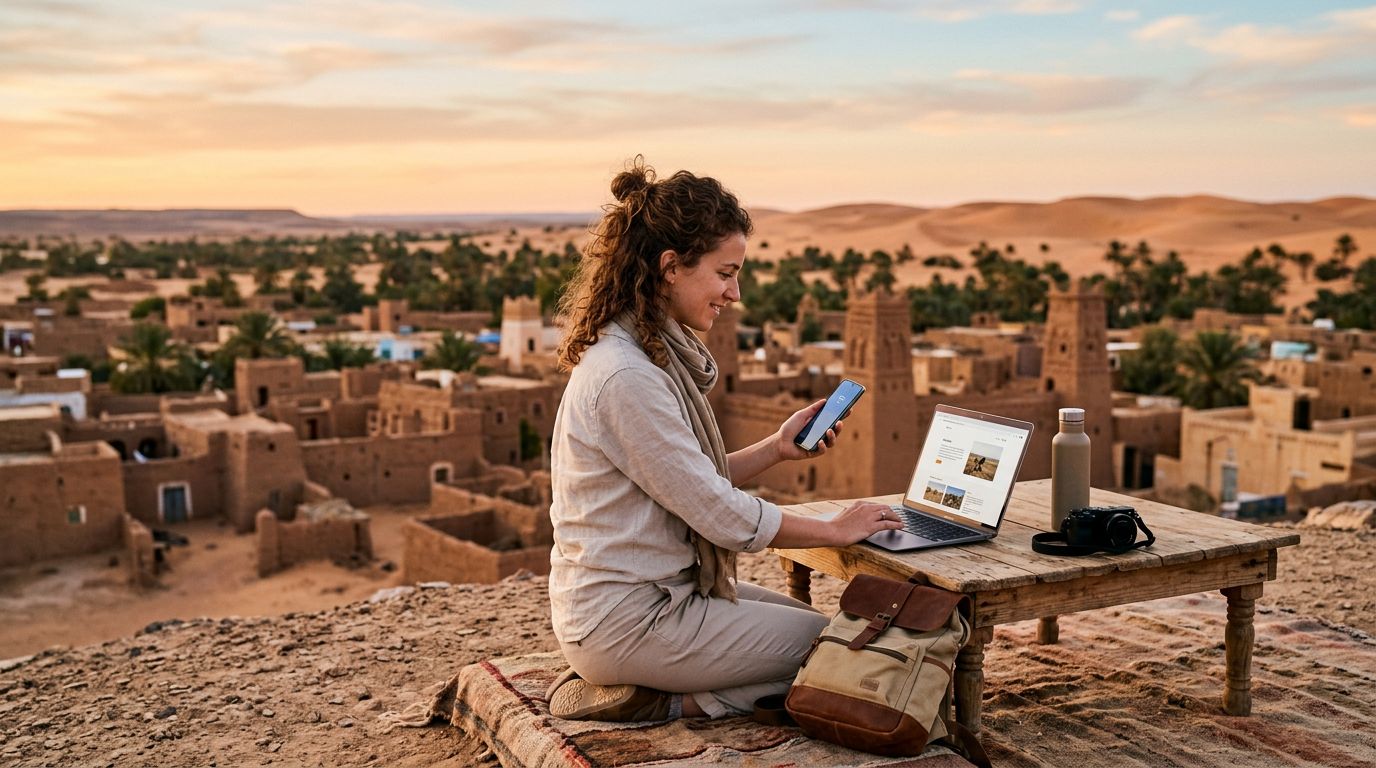
When you arrive in a country where the digital infrastructure is still expanding, the ability to share your connection becomes a vital tool. Whether you are a professional needing to sync files on a laptop, a traveler trying to upload photos of the Banc d'Arguin National Park, or a group needing to coordinate travel logistics, knowing how to use hotspot in Mauritania effectively is essential. Relying on public Wi-Fi in cafes or hotels is rarely a secure or consistent option. Instead, having a dedicated mobile data solution that supports tethering allows you to create your own private, secure network wherever you have cellular reception.
OneTapSIM provides a streamlined approach to this problem. By utilizing eSIM technology, you bypass the physical limitations of local SIM cards, which often require registration processes or finding a store in a foreign language. With an eSIM, your device connects to local networks as soon as you land, providing the data foundation necessary to power your personal hotspot without the typical roaming headaches.
Configuring Your Device for Hotspot Tethering
Before you can share your connection, your device must be correctly configured to handle tethering. The process of enabling a hotspot is generally straightforward, but it requires specific settings to ensure that your data is routed correctly through your eSIM profile.
For iPhone users, navigate to the Settings menu and look for the Personal Hotspot option. If you do not see this immediately, check your Cellular Data settings. Ensure that your OneTapSIM profile is selected as the primary source for cellular data. Within the Personal Hotspot menu, you can toggle the "Allow Others to Join" switch. It is highly recommended to set a strong, unique password to prevent unauthorized users from consuming your data. If you are using a modern device, ensure the "Maximize Compatibility" setting is toggled on if you are connecting older devices, as this switches the broadcast frequency to a more compatible range.
For Android users, the path is usually found under Settings, followed by Network & Internet, and then Hotspot & Tethering. Select Wi-Fi Hotspot to configure your network name and password. Crucially, you must verify your Access Point Name (APN) settings. Sometimes, when using an eSIM, the device may default to an incorrect APN, which can prevent the hotspot from broadcasting or prevent connected devices from accessing the internet. Your eSIM instructions will typically provide the correct APN information to ensure that tethering is fully functional.
Once configured, your phone acts as a mobile router. Keep in mind that tethering consumes data significantly faster than standard phone usage, as connected laptops often perform background updates or sync cloud services. Monitoring your data usage through your device’s settings is a smart practice to ensure you remain connected throughout your entire Mauritanian adventure.
Best Practices for Reliable Internet Access
To maximize the utility of your hotspot while traveling through Mauritania, you should adopt a few strategic habits. Connectivity quality can fluctuate depending on your proximity to cell towers, especially in the desert regions. If you find your hotspot speed is lagging, try moving your phone closer to a window or an elevated position. Signal strength is often the primary factor in tethering performance.
Another tip for maintaining a stable connection is to manage your connected devices. If you have a laptop, tablet, and camera all connected to your phone simultaneously, the bandwidth will be split, and your phone’s battery will drain rapidly. Close unnecessary background applications on your laptop, such as cloud storage synchronization tools or high-definition video streaming services, which can consume large amounts of data without your direct input. By limiting the number of active devices to only those strictly necessary, you ensure a smoother experience for the task at hand.
Battery management is the silent partner of connectivity. Broadcasting a Wi-Fi signal is an energy-intensive process. If you plan on using your hotspot for an extended period, carry a portable power bank. Using your phone while it is plugged into a power source keeps the signal stable and prevents the device from entering low-power modes that might throttle your connection speed to preserve battery life.
Finally, consider the nature of your data usage. Mauritania’s network infrastructure is best suited for communication, navigation, and light web browsing. Attempting to download large software updates or stream high-resolution video might lead to a poor experience, regardless of the quality of your eSIM provider. By prioritizing essential tasks, you ensure that your connection remains reliable when you need it most.
OneTapSIM simplifies this entire experience by offering a digital-first solution that eliminates the need to swap physical cards or deal with local vendors. By preparing your device settings before you depart and understanding the physical requirements of maintaining a hotspot in a remote environment, you can enjoy the freedom of the Sahara without losing your connection to the rest of the world. Whether you are navigating the streets of Nouakchott or camping under the stars, having a reliable, tethered connection ensures that your travel experience remains both connected and secure.
Obtenez une eSIM pour
Des forfaits pour les destinations de ce guide, livrés instantanément par QR.