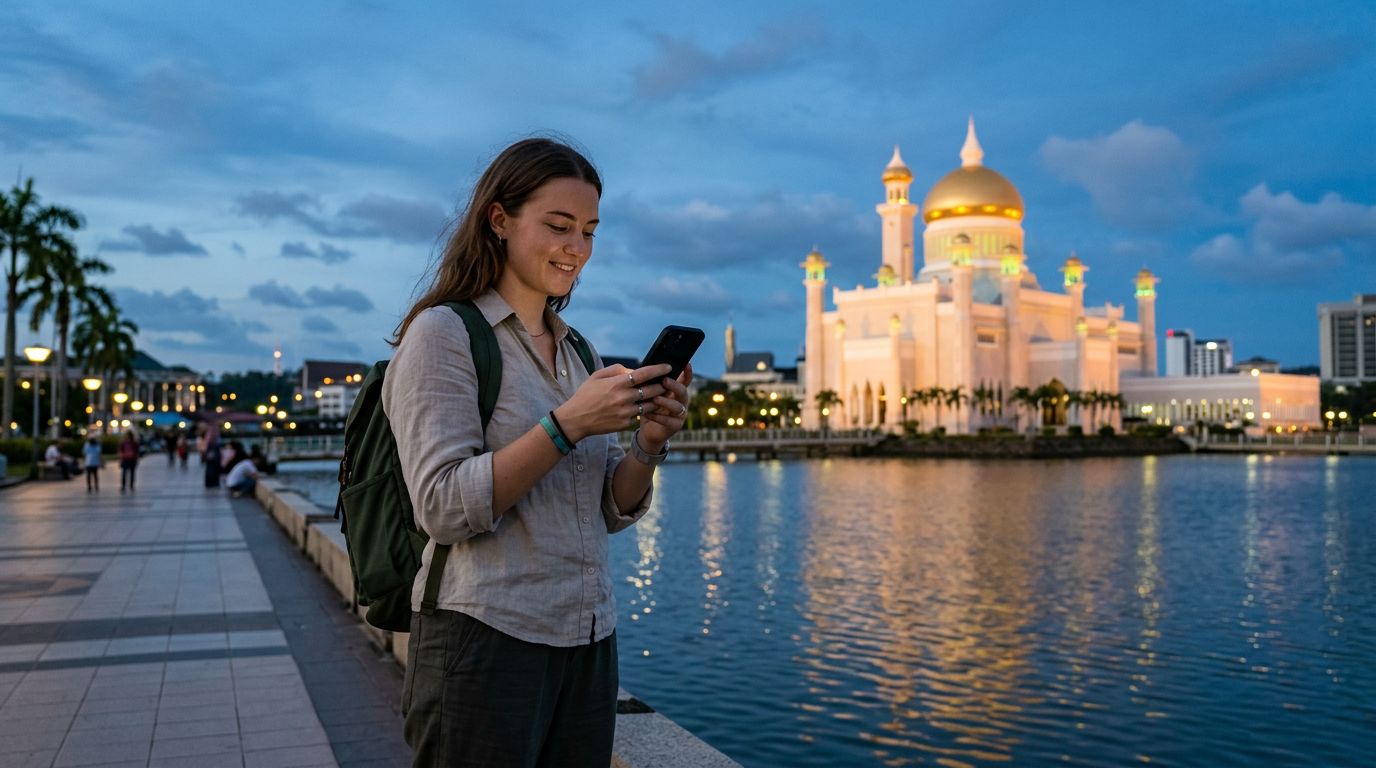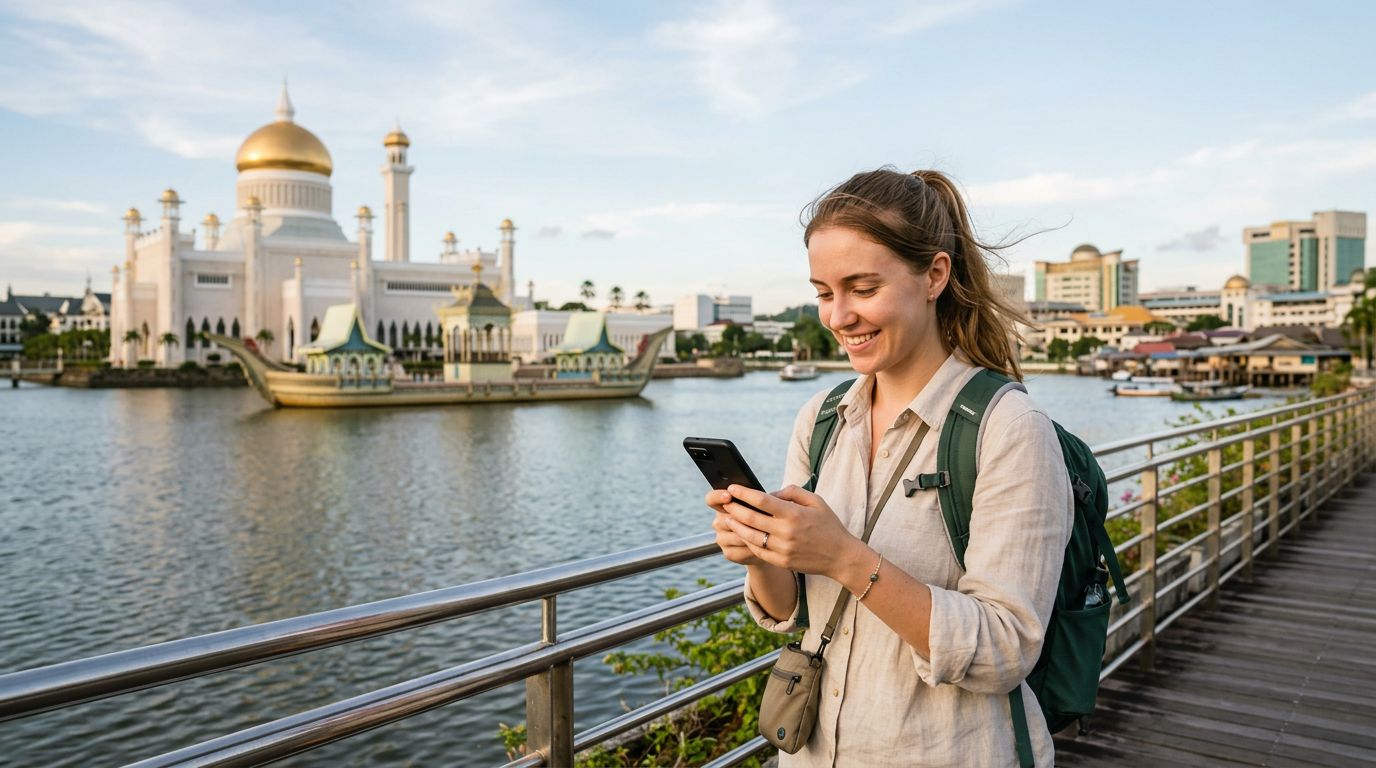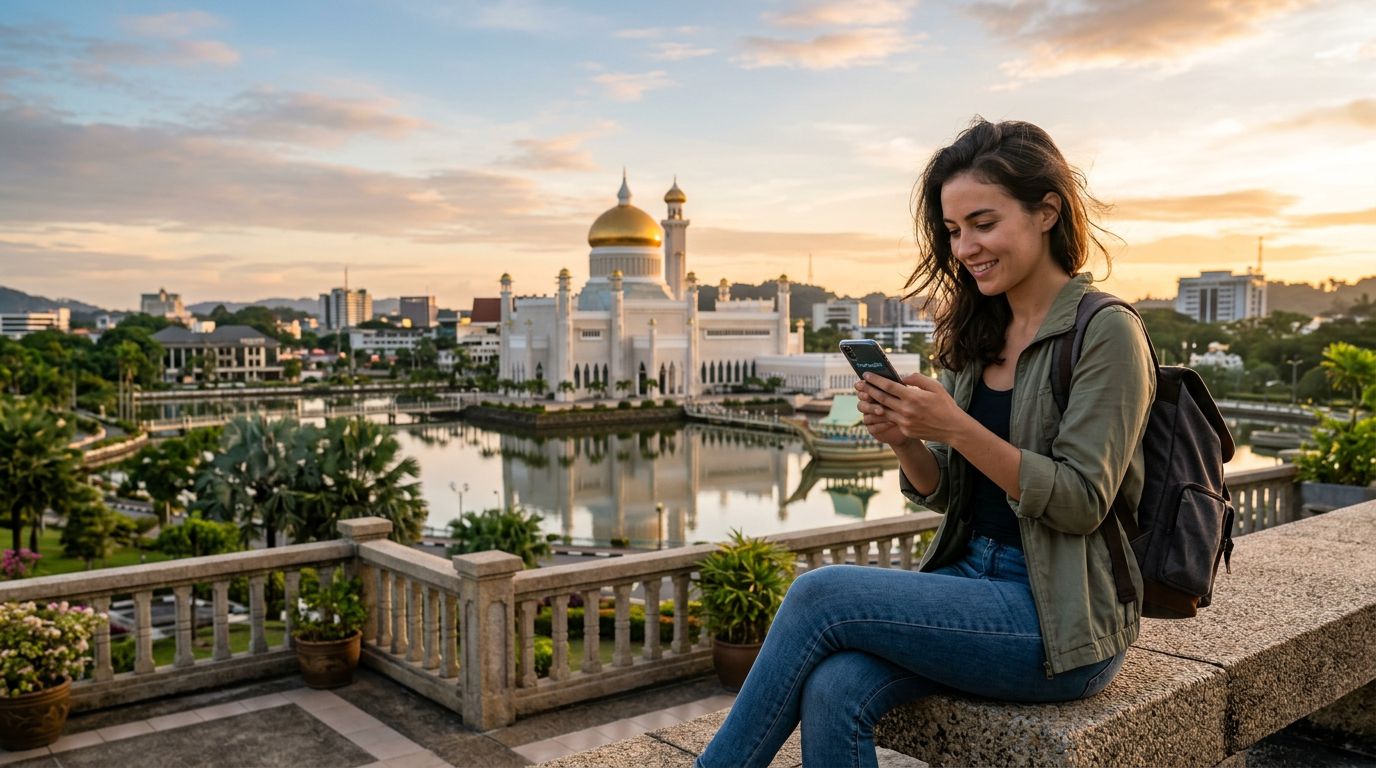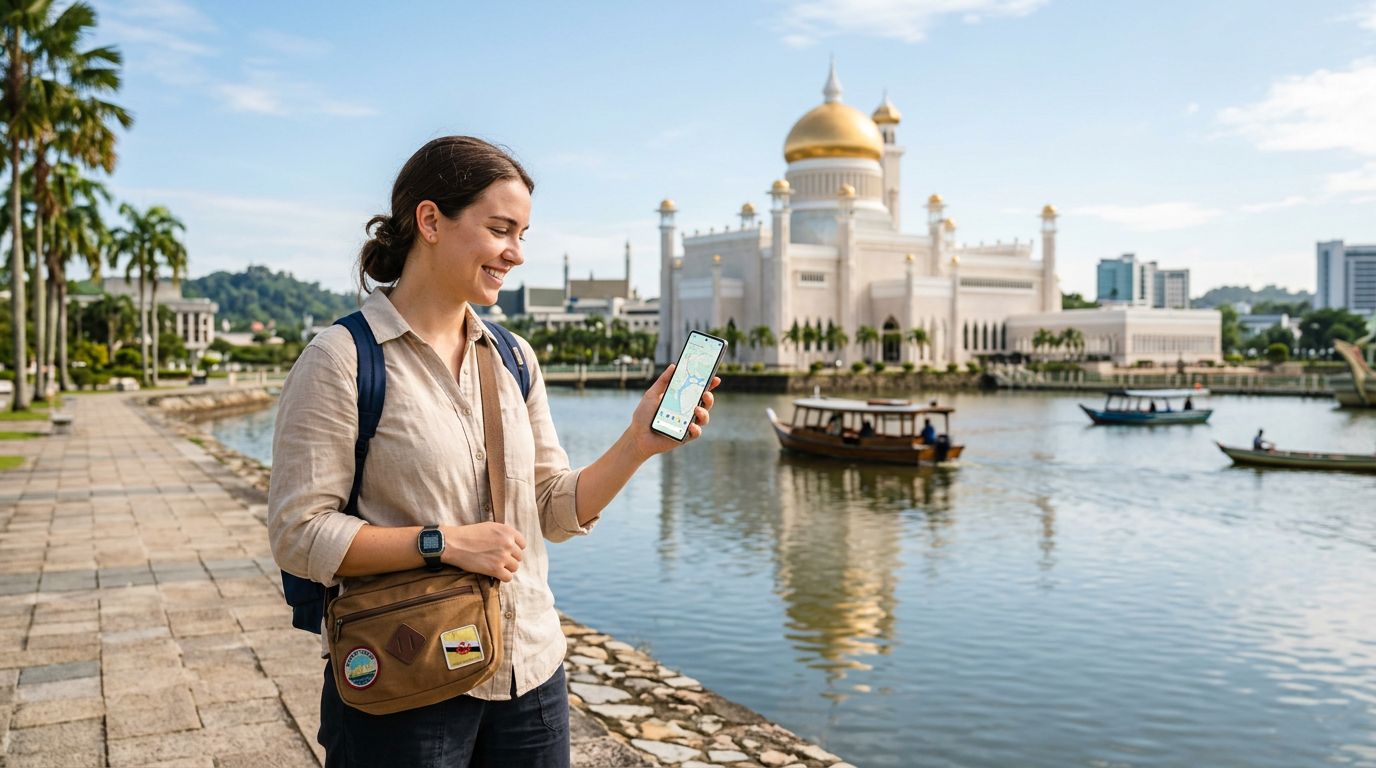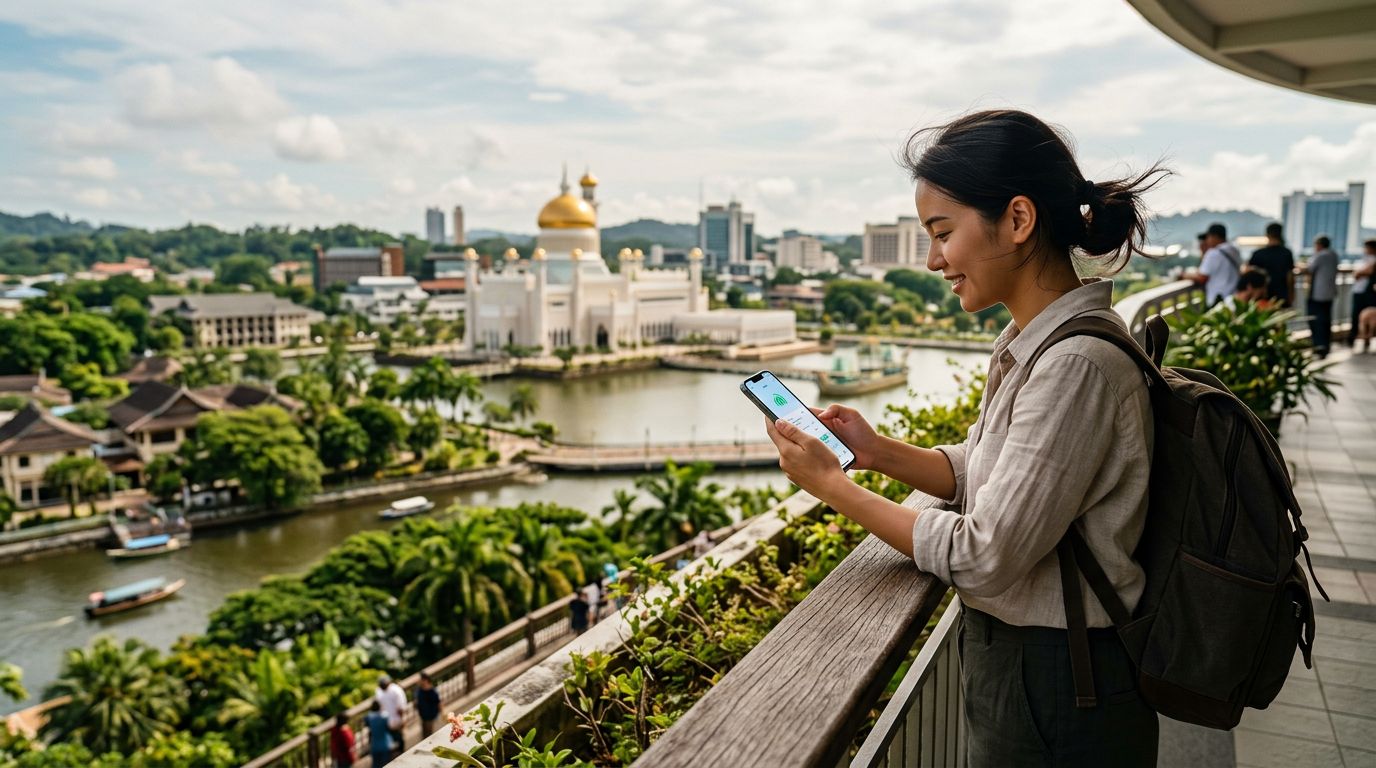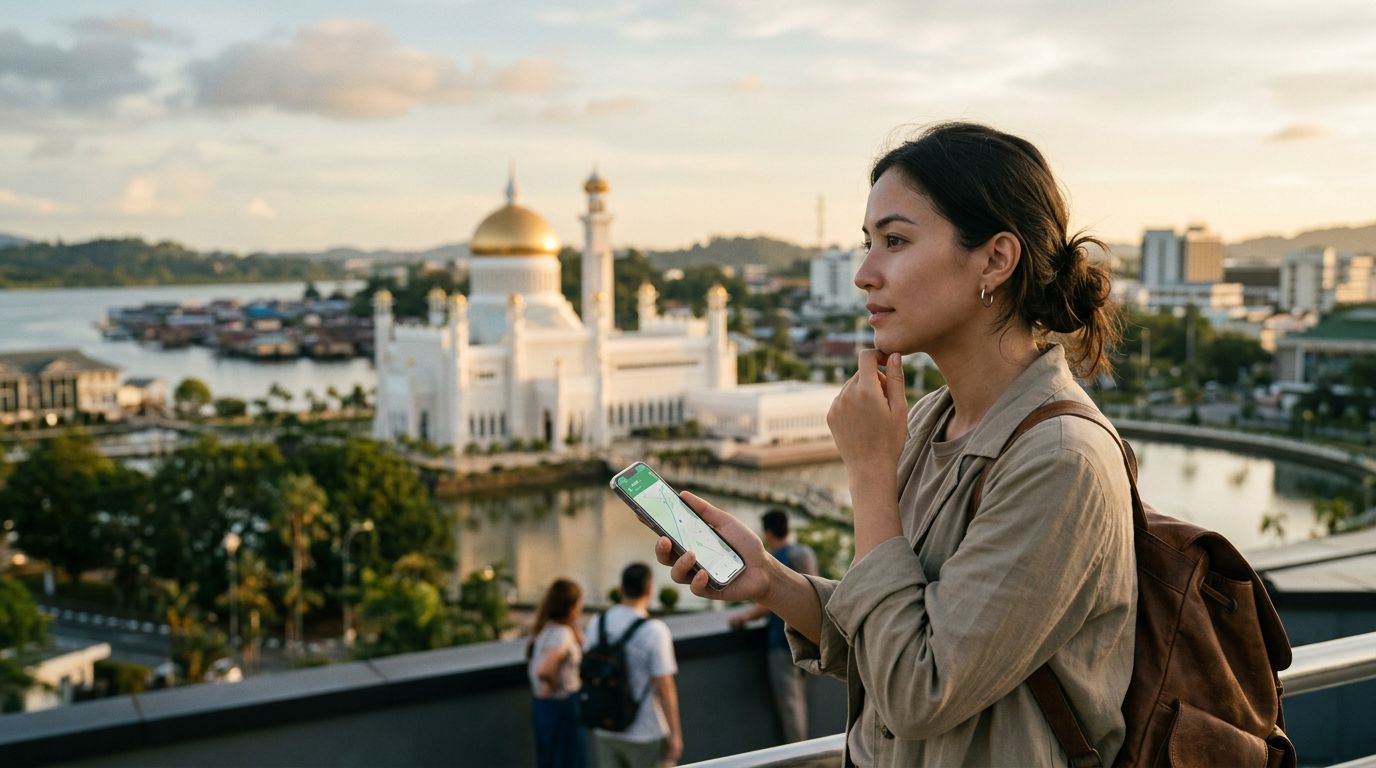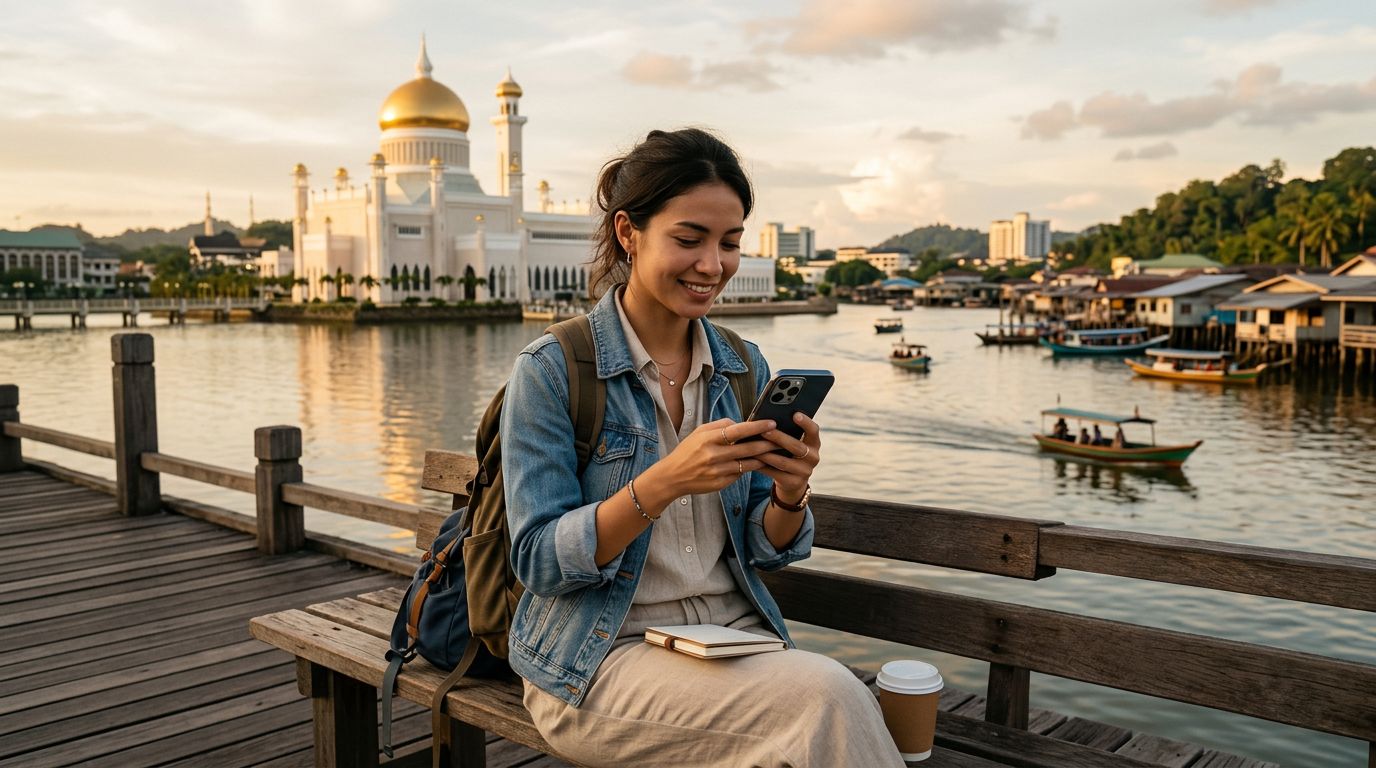
Brunei Darussalam is a hidden gem in Southeast Asia, offering a unique blend of opulent mosques, lush rainforests, and serene river villages. Whether you are visiting the capital, Bandar Seri Begawan, to see the majestic Sultan Omar Ali Saifuddien Mosque or venturing into the pristine wilderness of Ulu Temburong National Park, staying connected is essential. Many travelers find that having a reliable internet connection is not just about social media; it is about accessing maps, translating local phrases, and managing travel logistics on the go.
For those traveling in groups or carrying multiple devices, the ability to share your connection is a major advantage. Understanding how to use hotspot in Brunei allows you to turn your smartphone into a portable Wi-Fi hub, ensuring that your tablet, laptop, or your travel companion's phone remains online throughout your journey.
Setting Up Your Mobile Hotspot for Brunei Travel
Before you can share your internet connection, you must ensure your primary device is ready to act as a bridge. Most modern smartphones are equipped with personal hotspot functionality, but the effectiveness of this feature depends heavily on your data plan. If you are using a roaming plan from your home carrier, you might find that hotspot usage is restricted or incurs significant extra charges.
This is where a dedicated travel eSIM becomes a practical solution. By installing a OneTapSIM eSIM before you arrive in Brunei, you gain access to local data networks immediately upon landing. Because these eSIMs are designed for international travelers, they typically support hotspot functionality, allowing you to share your data allowance across your devices without the worry of hidden roaming fees or restrictive carrier settings.
To enable the hotspot on an iPhone, navigate to your Settings menu, select "Personal Hotspot," and toggle the switch to "Allow Others to Join." You should also set a strong password to prevent unauthorized users from connecting to your network. On Android devices, the path is generally through Settings, then "Network & Internet," followed by "Hotspot & Tethering." Once activated, your device will broadcast a Wi-Fi signal that other devices can detect and connect to using the password you created.
Optimizing Your Connection for Better Performance
Once you have successfully activated your hotspot, there are several ways to ensure the connection remains stable and efficient while you explore Brunei. Brunei’s infrastructure is quite modern, and you will find solid 4G coverage in urban areas. However, signal strength can fluctuate in remote locations like the rainforests of Temburong.
To get the best results, place your hotspot device in an area with clear reception. Avoid keeping it inside a bag or near large metal objects that might block the signal. If you are using your phone to share data, keep in mind that the hotspot feature consumes battery life much faster than standard usage. Carrying a portable power bank is a smart travel habit, as it allows you to keep your phone charged while maintaining a steady connection for your other devices.
Another tip for managing your data usage is to adjust the settings on your connected devices. If you connect a laptop to your phone’s hotspot, the laptop may automatically begin downloading large background updates or syncing cloud files. You can prevent this by setting your connection as a "metered connection" in your laptop’s network settings. This tells the operating system to limit data-heavy background tasks, preserving your OneTapSIM data allowance for the things that matter most, such as navigation and research.
If you notice your speeds are slower than expected, try toggling the hotspot off and on again, or switch your device from a 5G/LTE setting to a 4G-only mode if the signal is inconsistent. Sometimes, forcing the device to stabilize on a stronger 4G band provides a more reliable experience than struggling with a weak 5G signal.
Common Challenges and Troubleshooting Tips
Even with the best preparation, technical issues can arise. If you find that your devices are not connecting to your hotspot, the first step is to verify that your data plan is active and that you have not exceeded your data limit. With a OneTapSIM eSIM, you can easily monitor your usage through your account dashboard or the settings menu on your phone, ensuring you are never caught off guard.
If your data is active but the hotspot still fails to work, check your APN (Access Point Name) settings. Occasionally, a device might need a specific APN configuration to allow tethering. Most modern phones handle this automatically when you install an eSIM, but if you encounter trouble, a quick restart of your smartphone usually resolves minor software glitches.
Another common issue is device compatibility. While almost all modern smartphones support hotspot tethering, some older tablets or laptops may struggle to connect to the specific frequency bands broadcast by your phone. If you are having trouble connecting a specific piece of equipment, try changing the hotspot frequency band in your phone’s settings from 5GHz to 2.4GHz. The 2.4GHz band has a longer range and better compatibility with a wider variety of devices, making it the more reliable choice for travel settings.
Finally, remember that security is paramount when using public or shared networks. Even when you are the one providing the hotspot, always ensure your password is complex. Avoid using simple sequences or common words. By following these steps and utilizing a reliable data source, you can enjoy the peace of mind that comes with being connected, allowing you to focus on the beauty and culture of Brunei rather than worrying about your internet access. Whether you are uploading photos of the Water Village or checking your itinerary for a river cruise, a well-managed hotspot setup ensures you stay connected throughout your entire Bruneian adventure.
Get an eSIM for
Plans for the destinations covered in this guide, with instant QR delivery.