Understanding the Data Drain of Autoplay
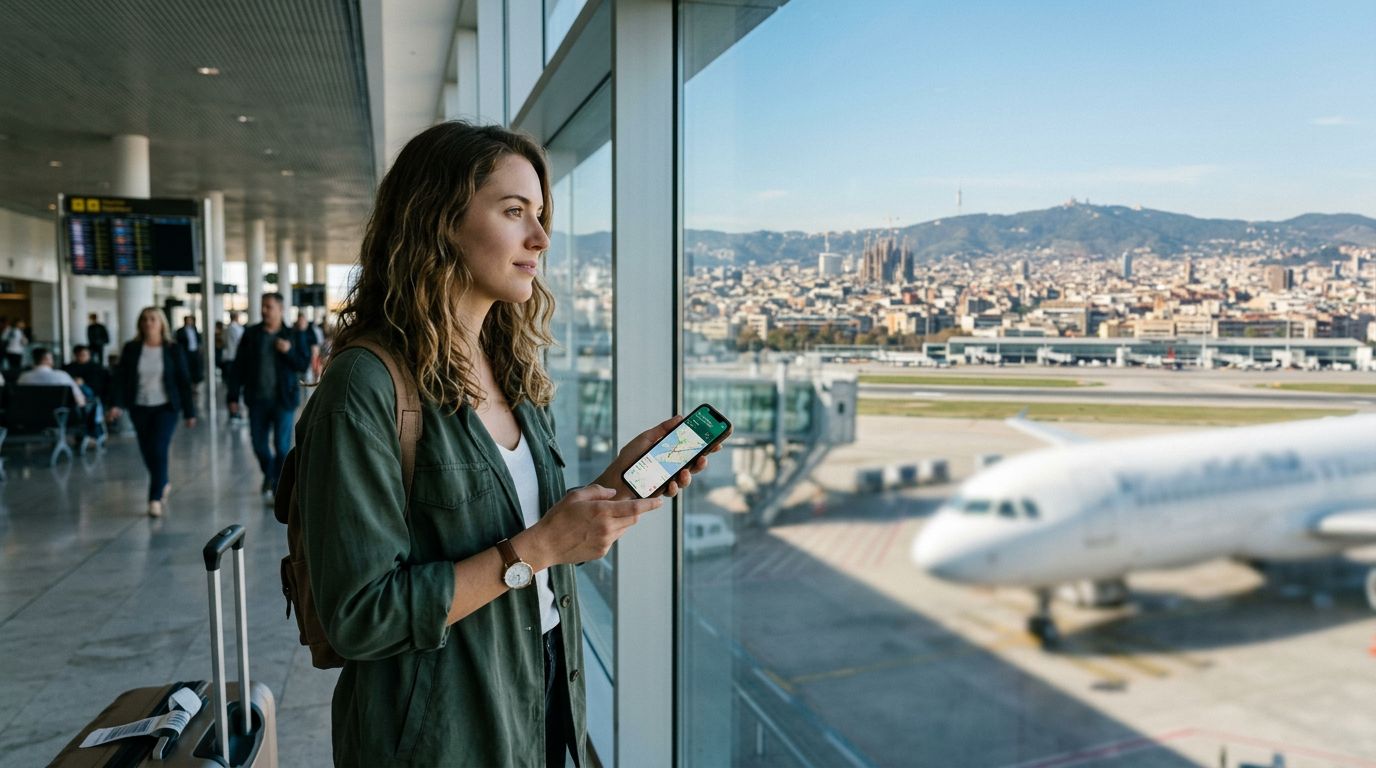
When you travel abroad, your smartphone becomes your most essential tool. Whether you are using maps to find a hidden cafe, translating menus, or uploading photos of your journey, you rely on a stable internet connection. However, many travelers find their data limits disappearing far faster than expected. One of the primary, yet often overlooked, culprits behind this rapid consumption is the autoplay video feature found on almost every social media platform and news website.
Autoplay videos are designed to capture your attention immediately. As you scroll through your feeds, these clips begin playing silently, often in high definition, without you ever clicking a button. While this might be convenient when you are connected to a high-speed home Wi-Fi network with an unlimited data plan, it becomes a significant liability when you are roaming. Each video that loads in the background consumes a portion of your mobile data allowance. If you scroll through a feed for ten minutes, you might inadvertently load dozens of videos, consuming hundreds of megabytes without ever actually watching them.
By taking control of these settings, you ensure that your data is reserved for the things that truly matter—like staying in touch with family, finding your way around a new city, or accessing your travel documents. Managing your connection is a critical part of travel preparation, and pairing these digital habits with a reliable service like OneTapSIM ensures that you remain connected throughout your trip without unexpected interruptions.
Disabling Autoplay on Major Platforms
To preserve your data while traveling, you should manually adjust the settings on your most-used applications. Most platforms have hidden these options within their accessibility or data usage menus.
For social media platforms like Facebook and Instagram, the process is relatively straightforward. Within the settings menu of the Facebook app, look for the "Media" or "Videos and Photos" section. There, you will find an option to disable autoplay entirely or restrict it to Wi-Fi only. Selecting the "Never Autoplay Videos" option is the most effective way to prevent background data usage. On Instagram, you can navigate to your profile, access the settings, and find the "Data Usage" section. Enabling "Data Saver" mode often restricts high-resolution media from loading automatically, which is a great secondary defense against data depletion.
Twitter, now known as X, also allows for granular control. In the settings, navigate to "Accessibility, display, and languages," then select "Data usage." You can toggle off video autoplay, ensuring that clips only play when you specifically tap on them. Similarly, video-heavy platforms like YouTube offer a "Limit mobile data usage" setting that prevents high-definition streaming over cellular networks.
If you are using a browser like Chrome or Safari, the situation is slightly different. While browsers don't always have a global "stop all video" button, you can often find extensions or internal settings that prevent media from loading automatically. Making these small adjustments before you board your flight or as soon as you land with your OneTapSIM activated can save you a substantial amount of data over the course of a week-long trip.
Best Practices for Data Management While Traveling
Beyond disabling autoplay videos, there are several other habits you can adopt to ensure your mobile data lasts as long as possible. Many smartphones come equipped with a built-in "Low Data Mode" or "Data Saver" feature that acts as a master switch for background activity.
On iOS devices, you can go to your cellular settings to enable Low Data Mode. This feature pauses automatic updates, background tasks, and photo syncing while you are on a cellular connection. It is an excellent way to ensure that your phone is not performing heavy tasks, such as backing up your photo library to the cloud, while you are out exploring. Android users have a similar feature under the "Network & internet" settings, where you can enable Data Saver to prevent apps from using data in the background.
Another major data consumer is automatic app updates. By default, your phone may try to download large software updates or patches as soon as it detects a stable connection. You should configure your App Store or Google Play Store settings to "Download updates over Wi-Fi only." This prevents your device from consuming your travel data for background maintenance.
Finally, consider the role of offline maps and downloads. Before you leave your hotel or a location with free Wi-Fi, download your maps for the area you plan to visit. Google Maps allows you to save specific regions for offline use, meaning you can navigate without needing a constant stream of data. Similarly, if you enjoy listening to podcasts or music while traveling, download your episodes ahead of time.
When you manage your device settings proactively, you gain peace of mind. You no longer have to worry about whether a stray video or an background update is eating into your remaining balance. With OneTapSIM, you have a reliable connection that works when you need it, but by implementing these simple restrictions, you ensure that your data is used efficiently and exclusively for your own needs. Whether you are navigating a bustling metropolis or relaxing in a quiet coastal town, keeping your data usage under control allows you to focus on the experience rather than the technical limitations of your device. Staying connected should be seamless, and by taking these steps to disable autoplay and manage background processes, you make the most of every gigabyte.